
Inventory
Everything that changes how much stock you have, other than selling it: receiving, correcting, counting, moving between branches, and sending items back to a supplier.
- Where to find it
- Inventory
- Who can use it
- Roles that can see products or inventory. Stock takes, transfers and serial numbers are on the Premium plan and above.
What is in the Inventory menu
- Dashboard: stock at a glance.
- Manage Inventory: your products. See Products.
- Stock transfers, Purchase Orders, Supplier Services, New Stock, Stock Take and Stock movements: covered below.
- Barcodes & items: serial-numbered items.
Change one product's stock
- In Manage Inventory, open the product's row menu and choose Update Stock.
- Choose Stock In to add, Stock Out to take away, or Adjust Stock to set the quantity to what you counted.
- Enter the quantity and save.
Receive stock from a supplier
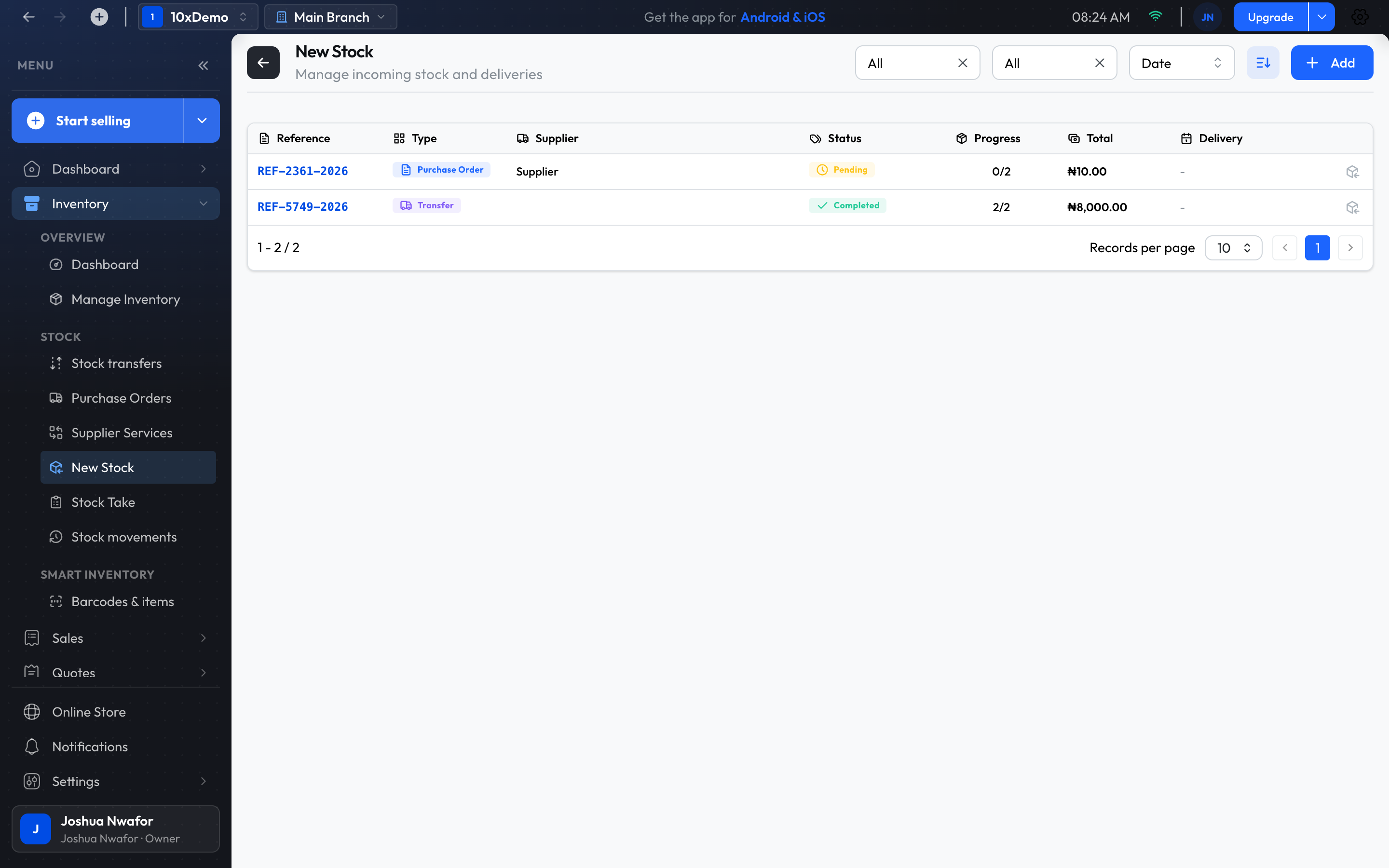
- Open New Stock and choose Add.
- Fill in the supplier and the details.
- Use Add Products and enter each quantity and unit cost.
- Choose Create New Stock.
- When the goods arrive, choose Mark Received or Mark Fully Received, then Complete.
Purchase orders
To record an order before the goods come, open Purchase Orders, choose New Order, then Record purchase. New Purchase, under the arrow beside Start selling, is a shortcut.
Count your stock
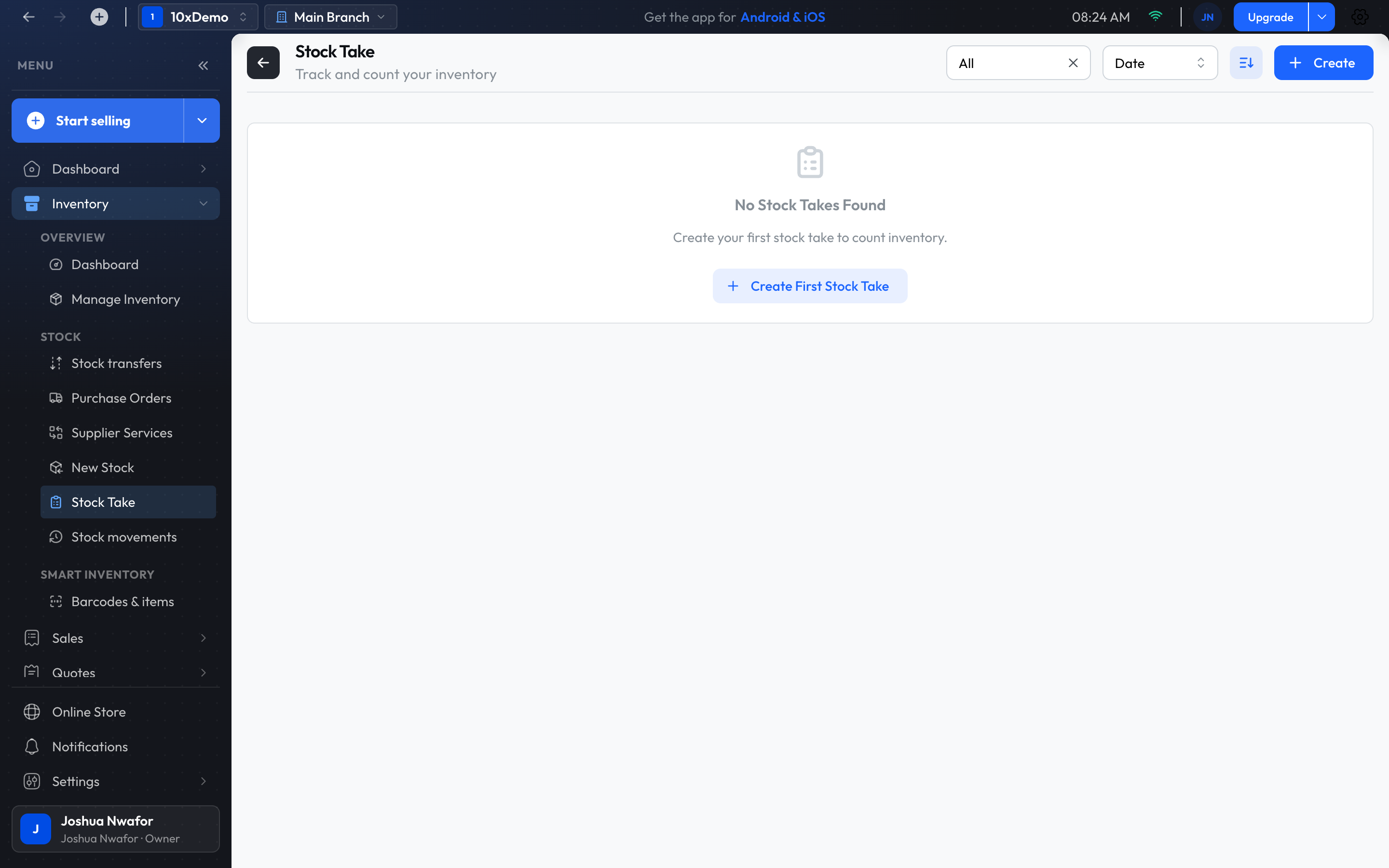
- Open Stock Take and choose Create Stock Take.
- Add the products to count, up to 500 in one stock take.
- Choose Start Count and enter what is on the shelves.
- Choose Complete, then Approve.
Important
Move stock between branches
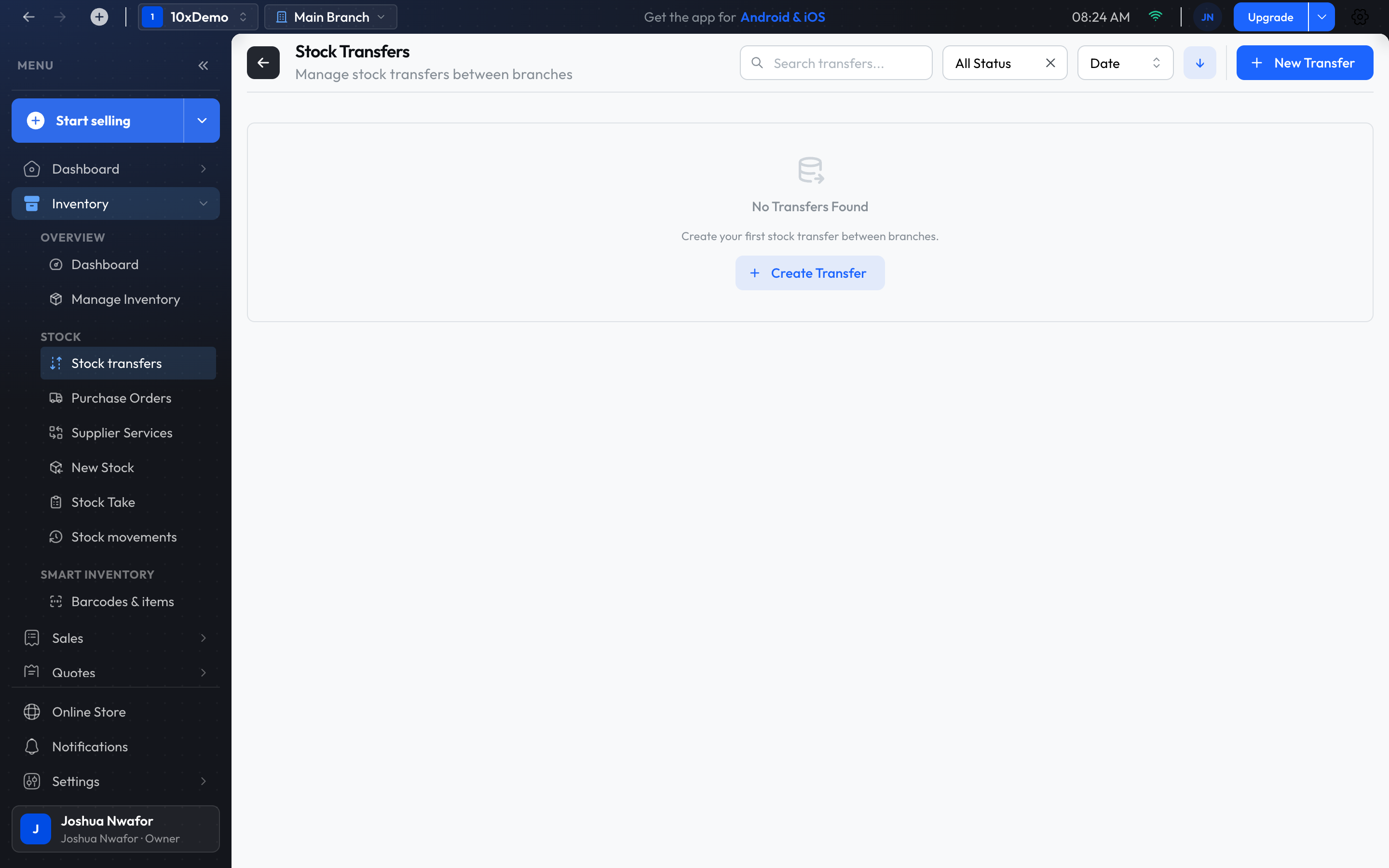
- Open Stock transfers and choose Create Stock Transfer. Transfer Stock, under the arrow beside Start selling, is a shortcut.
- Choose Transfer To to send stock, or Request From to ask another branch for it, and pick the other branch.
- Add the products and quantities. For serial-numbered products, pick the exact items to send.
- The transfer then moves through Process, Approve and Complete.
Send items back to a supplier
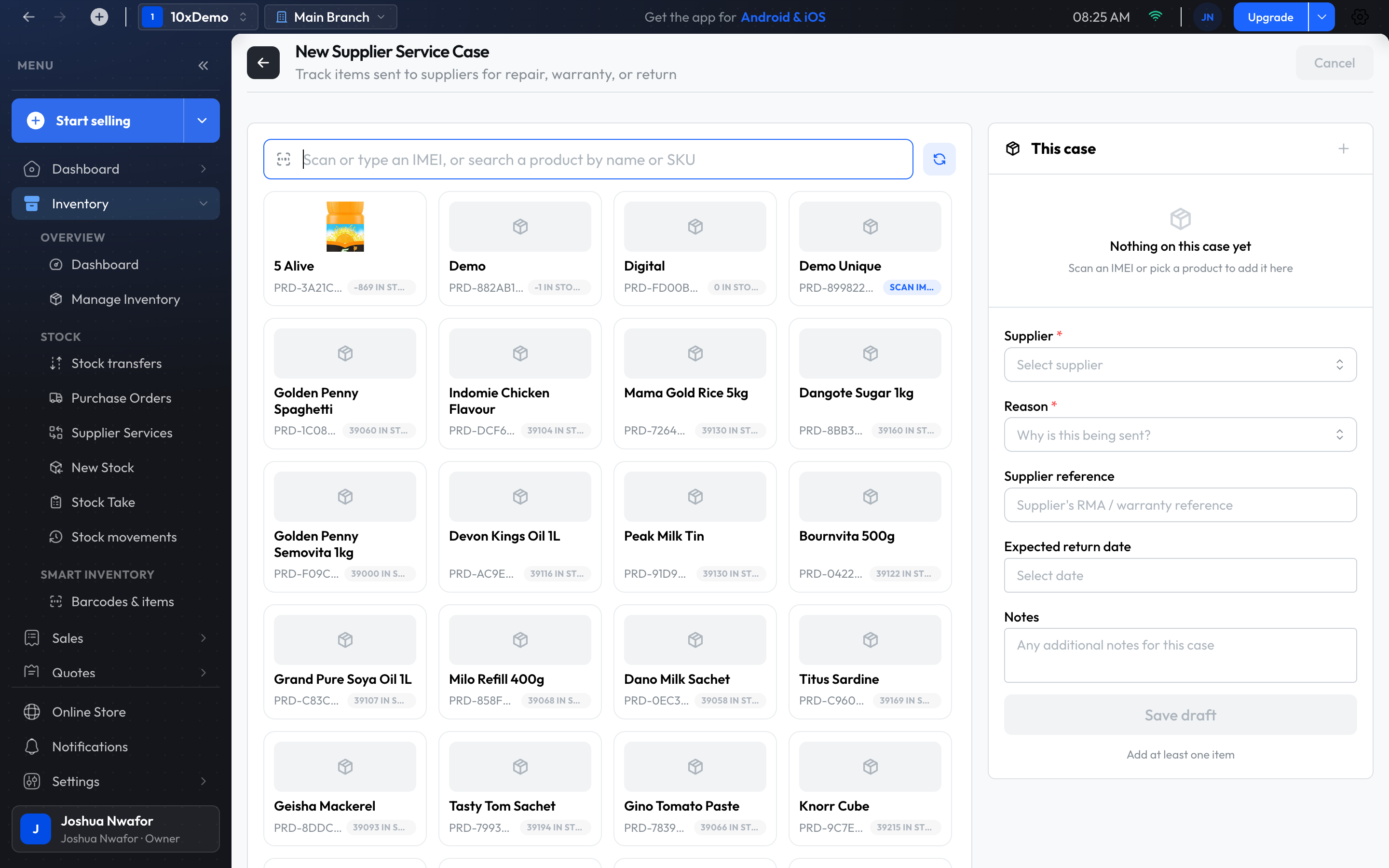
Supplier Services tracks items sent to a supplier for repair, warranty or return. Each batch is a case.
- Open Supplier Services and choose New case.
- Build the case the way you ring up a sale: scan or type an IMEI, or search a product by name or SKU, and press Enter. Serial-numbered products must be scanned by IMEI; scanning an ordinary product again raises its quantity.
- Choose the Supplier and the Reason: Defective, Damaged, Warranty, Servicing, Inspection, Incorrect Item, Quality Issue or Other. The supplier reference, expected return date and notes are optional.
- Choose Save draft.
- When the items leave, open the case and choose Actions → Send to supplier.
- As each item comes back or is settled, choose Record outcome on it.
What an outcome does to your stock:
- Back in stock: Repaired, Serviced, Inspected, Returned Unresolved, Rejected.
- Replaced: the supplier gave you a different unit.
- Written off: Credit Issued, Refunded, Scrapped, Other.
The case completes itself once every item has an outcome. Cancel case puts back any items that have no outcome yet.
See what changed your stock
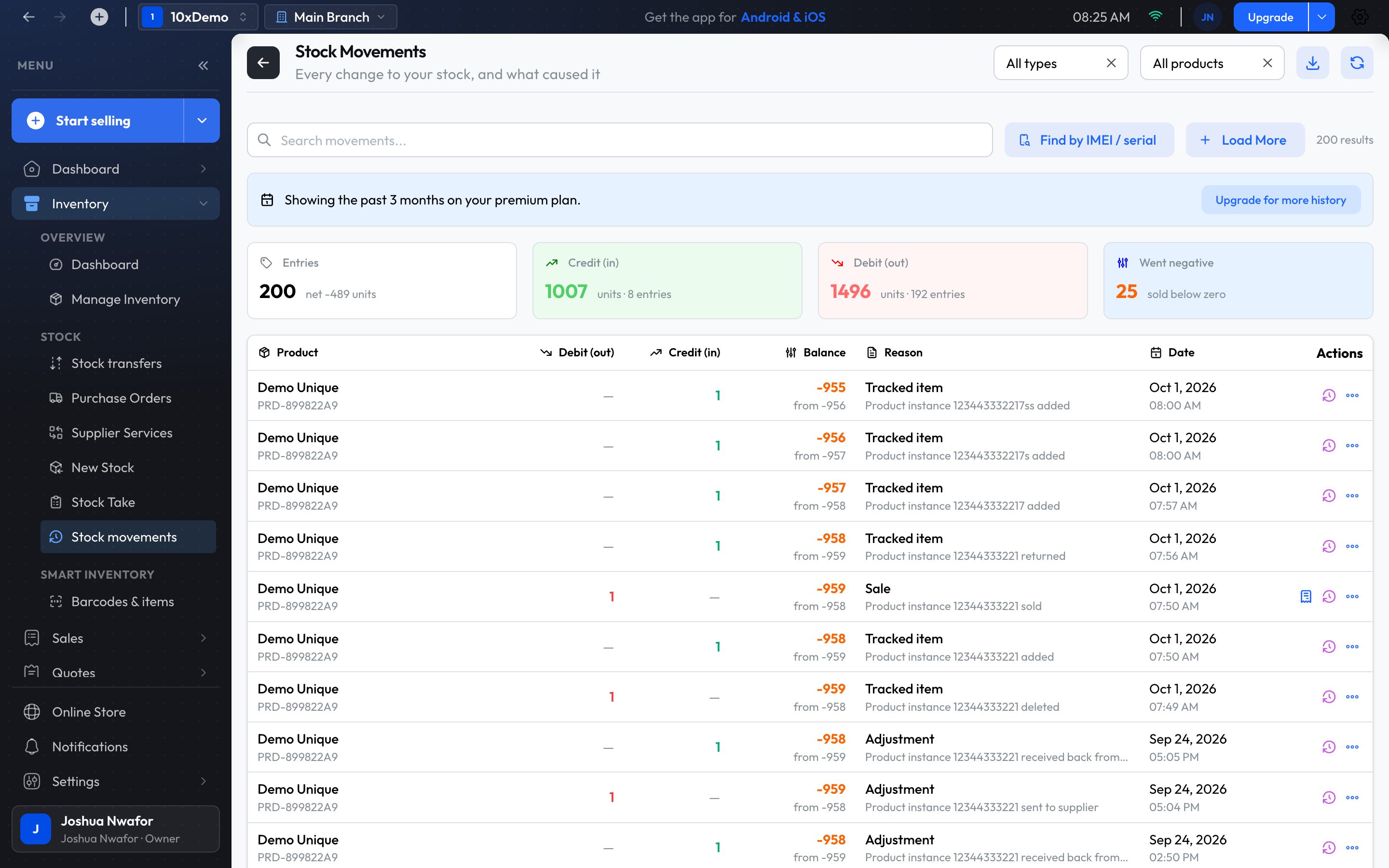
Stock movements lists every change to stock and what caused it. Each row shows the product, the quantity out or in, the balance afterwards, the reason and the date.
- Filter by Type (Stock in, Stock out, Adjustment, Stock count), by Product, or search.
- Reasons include Sale, Online order, Return, Credit note, Purchase order, New stock, Stock take, Transfer and Adjustment.
- On a sale's row, open the invoice that caused it. On any row, audit all of that product's movements.
- Export to CSV downloads the list.
Serial-numbered items
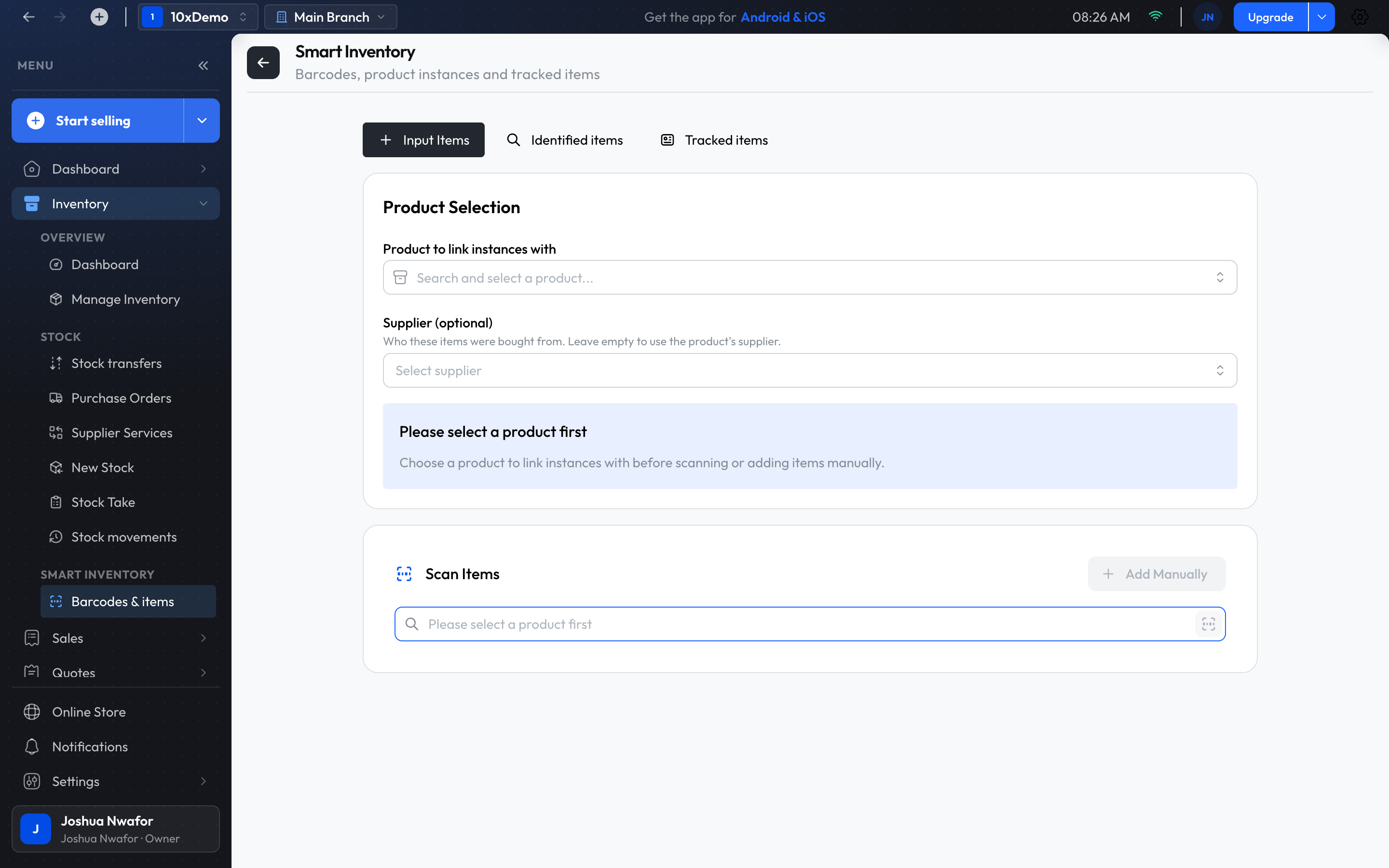
Phones, laptops and other goods tracked unit by unit are registered, sold, looked up and returned by their IMEI or serial number. That has its own page: Unique Instances.
Low stock
- The app alerts branch staff in Notifications when a product reaches its reorder level, and emails the owner when one runs out, at most once a day. Both can be switched off in Others → Automations.
- Tick Low Stock in Manage Inventory to list what is running low.
- The Low stock & reorder report lists what to buy. See Reports.
Tip
Related
Still stuck? Contact support.