
Printing
ShopkeeperPOS prints two things: a receipt on a USB thermal printer, and a full-page invoice through your computer's normal print window. This page also covers barcode scanners.
- Where to find it
- SettingsPrinter Settings
- Who can use it
- Everyone. Printer settings are saved on each computer, so set them up on every till.
Two ways to print
- Print sends a receipt straight to the USB receipt printer.
- Print as PDF prints the full invoice, in the look you chose under Invoice Templates, through the computer's print window. From there you can pick any printer installed on the computer, or save it as a PDF.
What works with the desktop app
- Receipt printers: USB thermal printers that use ESC/POS, which is most 57 mm (58 mm) and 80 mm receipt printers, on Windows and Mac. The paper is cut automatically at the end of each receipt.
- Office printers: any printer installed on the computer, for full-page invoices and reports.
- Barcode scanners: scanners that plug in and type like a keyboard.
Not supported in the desktop app:
- Receipt printers connected by network (LAN or Wi-Fi), Bluetooth or serial port
- Opening a cash drawer from the app
- Printing barcode labels
- Customer-facing displays and card terminals
- USB receipt printing from the browser version. Use the desktop app for receipts.
Set up a receipt printer
- Plug the printer into the computer by USB and switch it on.
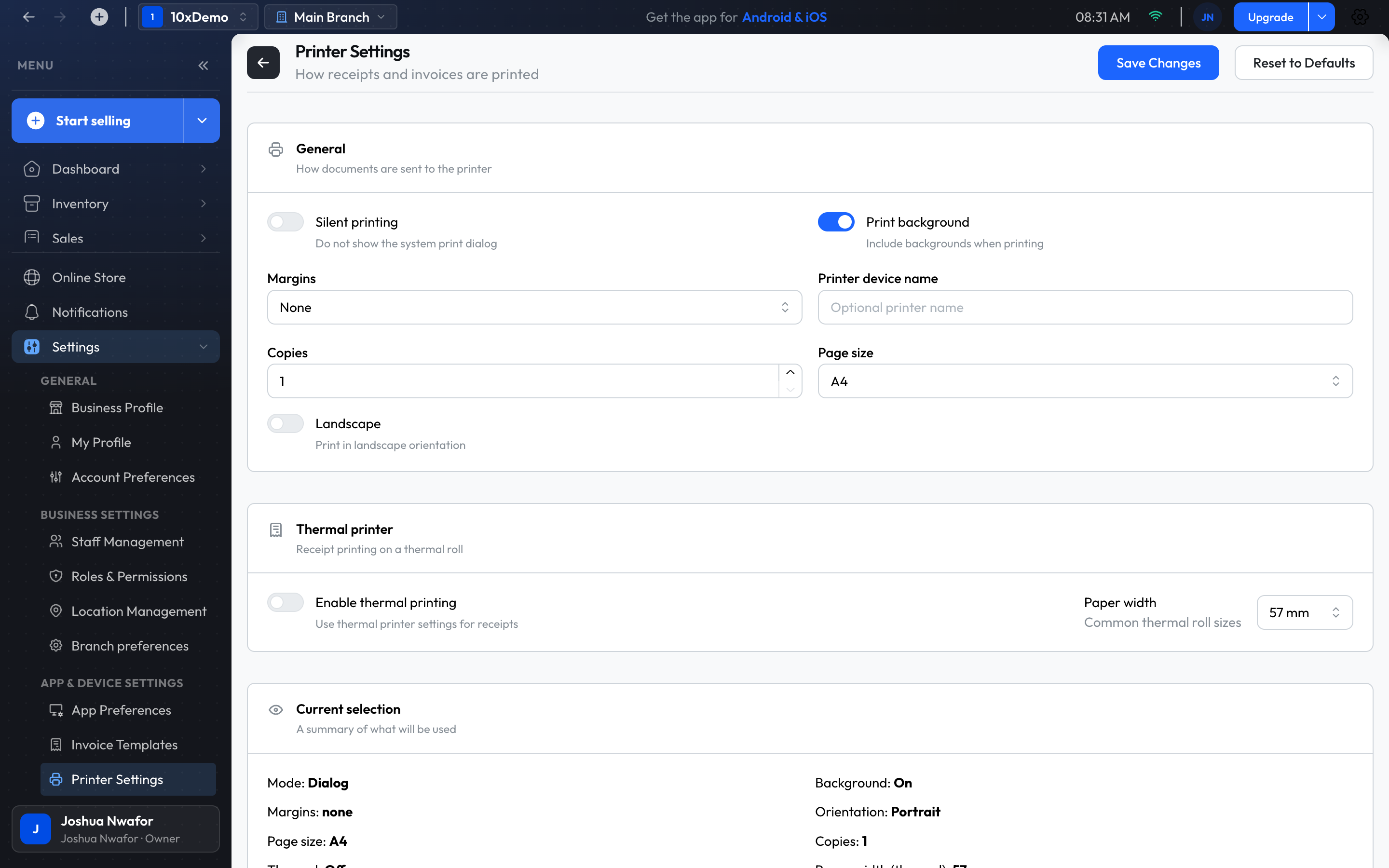
- Open Settings, then Printer Settings.
- Under Thermal printer, switch on Enable thermal printing.
- Set Paper width to 57 mm or 80 mm to match your paper roll.
- Choose Save Changes.
- Make a small sale, or open any invoice, and choose Print to check the receipt.
Important
Set up full-page printing
The General section of Printer Settings controls Print as PDF and report printing:
- Silent printing: print straight away without showing the print window.
- Print background: include background colours.
- Margins: None, Default, Printable Area or Custom.
- Printer device name: the name of the printer to use. Leave it empty to use the computer's default printer.
- Copies: how many to print. This applies to full-page printing, not to receipts.
- Page size: A4, A5, Letter, Legal or a custom size.
- Landscape: print sideways.
Current selection summarises what will be used. Test Print prints a test page with those settings, and Reset to Defaults puts everything back.
Print after a sale
When a sale is recorded, the app asks what to do next:
- Print: the receipt.
- Print as PDF: the full invoice.
- View Details: open the invoice.
In POS checkout the buttons are Print receipt, View invoice and New sale. Receipts aren't printed automatically; choose the button each time.
Reprint later
- Open Sales, then Manage Sales, and open the invoice.
- Choose Print, then Print for a receipt or Print as PDF for the full invoice.
What a receipt shows
- Your business name, address, phone, email and slogan
- The date and time, the invoice number, and the due date
- Transacted By: the team member who made the sale, when one was recorded
- The customer's name
- Each item with its quantity, unit price and line total
- The subtotal, then shipping, service charge, tax and discount where they apply, any amount still due, and the total
- Your footer text
The wording at the top and bottom, the logo and the signature come from Settings → Invoice Templates. See Settings.
Barcode scanners
Plug in the scanner and click in the box you want to scan into. A scan types the code, the same as if you had typed it.
- At the checkout: a scan goes into Search for items and finds the product. Scanning the serial number or IMEI of a serial-tracked item adds that exact item to the sale.
- In POS checkout: a scan filters the products by barcode; tap the product to add it.
- In Inventory: scan into the product search, the barcode box when creating a product, Barcodes & items, stock transfers and Supplier Services.
If something goes wrong
- Nothing prints, but the app says "Print job sent": the app doesn't report a missing printer. Check that the printer is on, has paper, and is plugged in by USB, and that it is the only receipt printer connected. Then restart the app.
- The receipt is too wide, cut off, or has a big margin: switch on Enable thermal printing and set Paper width to match the roll.
- Print does nothing in the browser: receipt printing needs the desktop app. Print as PDF still works in a browser.
- The scanner types but the product isn't found: the barcode on the product in the app doesn't match. Open the product and check its barcode.
Tip
Related
Still stuck? Contact support.