
Products
Products are what you sell. This page covers adding them one at a time or in bulk, and the options each product can have.
- Where to find it
- InventoryManage Inventory
- Who can use it
- Adding, editing and deleting products is for owners and admins. Variants, serial numbers, units of measure and expiry dates are on the Premium plan and above.
Add a product
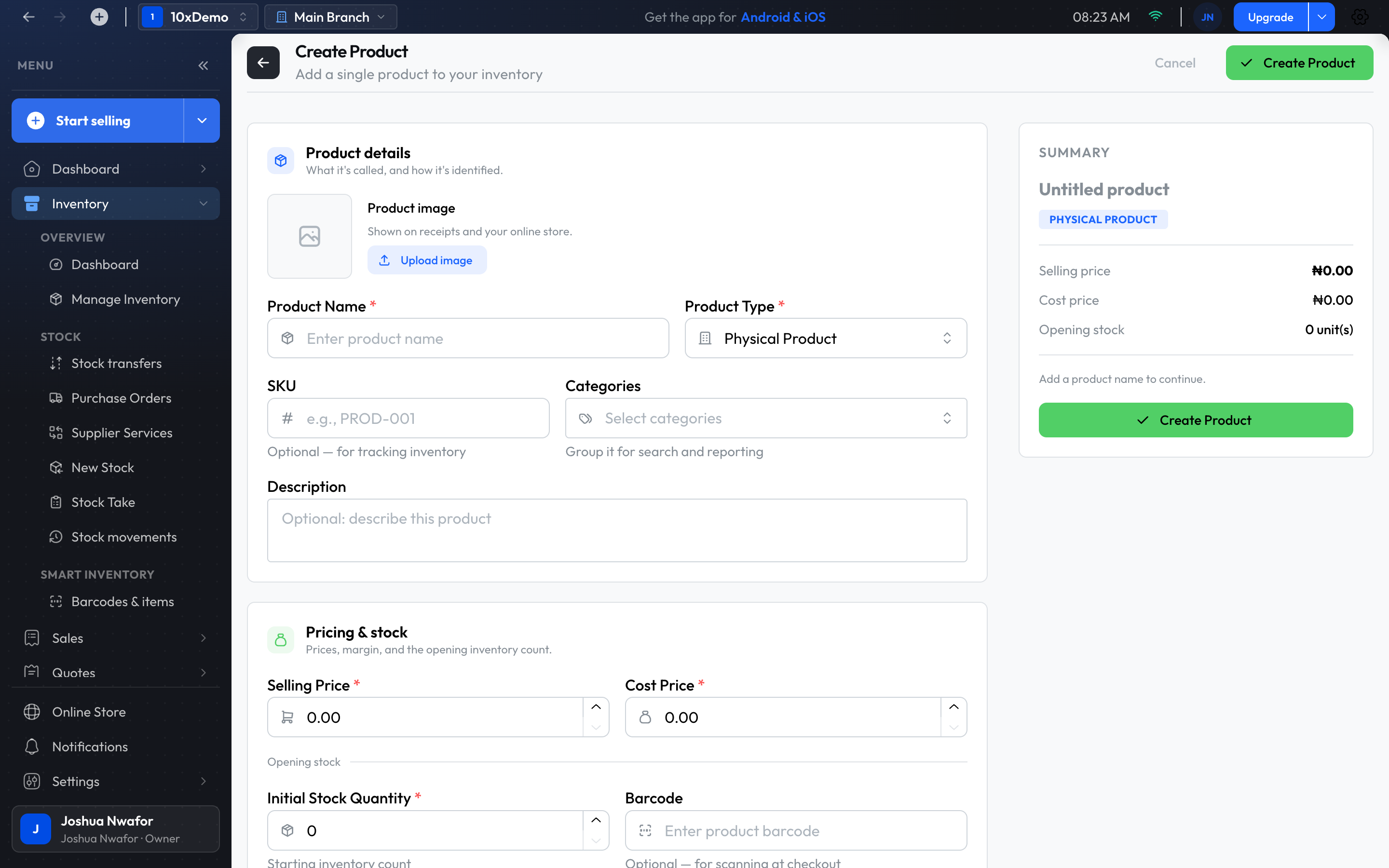
- Open Inventory → Manage Inventory and choose Add Product. New Product, under the arrow beside Start selling, goes to the same place.
- Enter the Product Name and choose the Product Type.
- Enter the Selling Price and the Cost Price.
- For a physical product, enter the Initial Stock Quantity and a barcode. The SKU, categories and description are optional.
- Choose Create Product.
Important
Product types
- Physical Product: ordinary stock, counted by quantity.
- Unique Instance: every unit has its own serial number or IMEI, such as phones and laptops. Each barcode you add is tracked as its own item.
- Digital Product and Service: hold no stock.
Options on a product
Open a product, or choose Edit Product from its row menu:
- Low Stock Threshold and Reorder Level: when the product counts as running low.
- Track Expiration and an expiry date, for products that go off.
- UOMs tab: other units the product is sold in, each with its own price, such as a carton of 24.
- Has Variants: switch it on, then add each variant (size, colour and so on) with its own SKU, price and stock.
- Show in Usedisha: sell the product on your online store.
Find and manage products
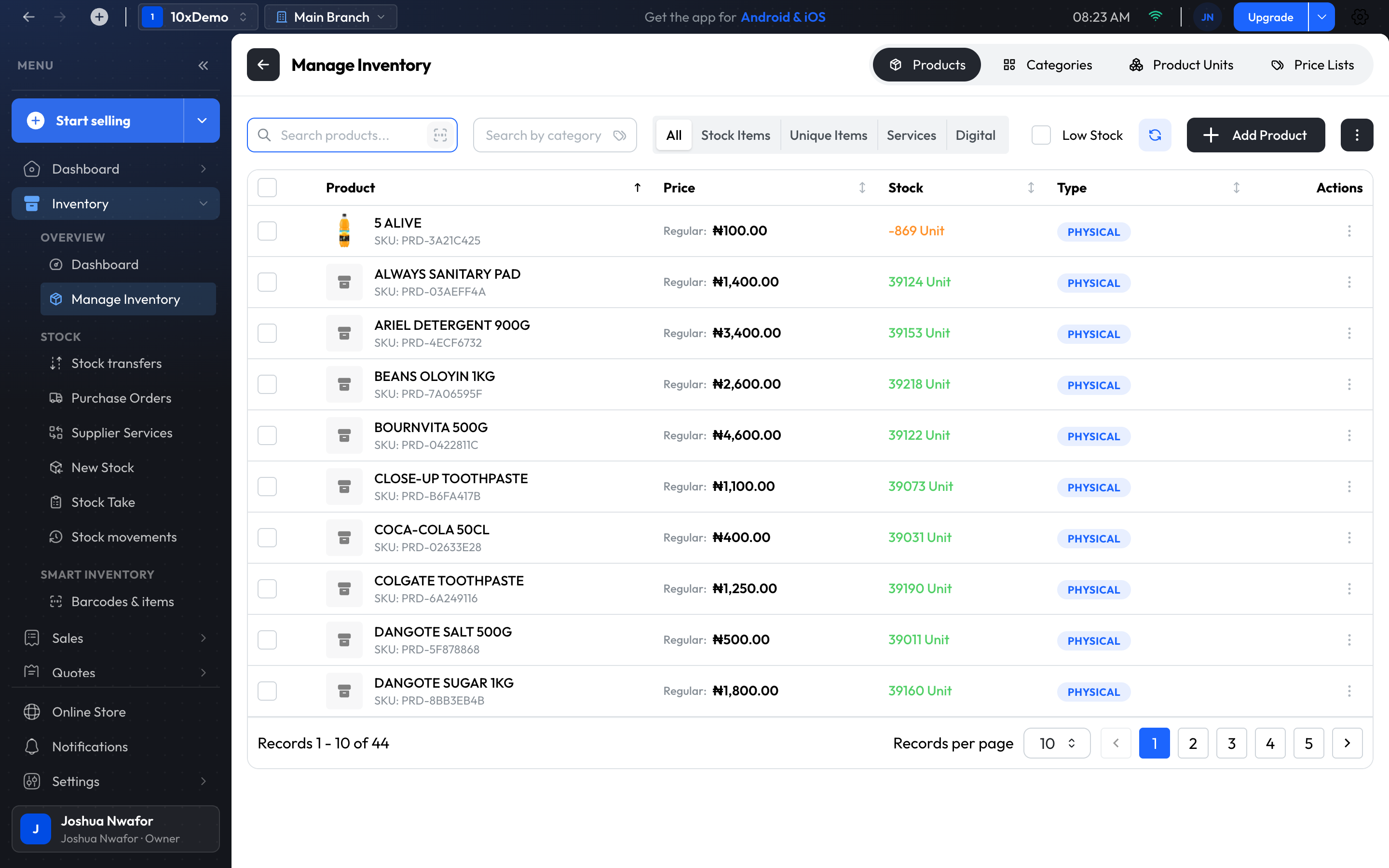
The Products tab lists each product with its price, stock and type.
- Search products... finds by name. The barcode icon beside it turns on scan mode, for finding a product with a scanner.
- Filter by category, by type (Stock Items, Unique Items, Services, Digital), or tick Low Stock.
- A row's menu has View Product, Update Stock, Edit Product and Delete Product.
Important
Tip
Add or change many products at once
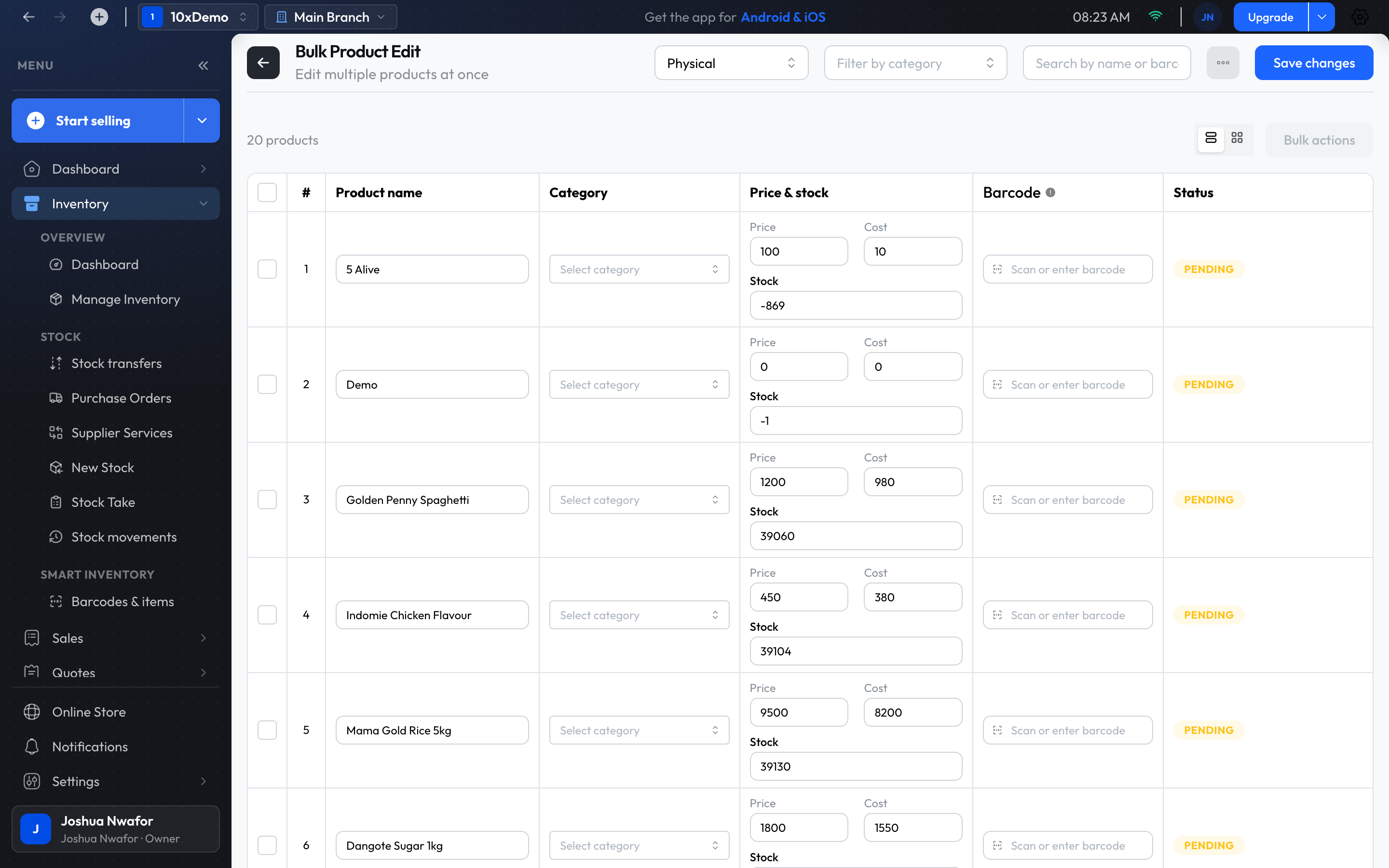
The ⋮ menu on the Products tab has three ways.
Import Products
Upload a CSV or Excel file of products. See Import Data for the steps and the sample file.
Bulk Create
- Choose the product type for the session: Physical or Unique instance. All rows in one session are the same type.
- Use Add item for each product and fill in its name, category, price, stock and barcode. Switch between the table and card layouts with the icons at the top.
- Choose Save changes.
Rows that are created drop off the list; any that fail stay, so you can correct and save them again. Unsaved rows are kept if you go to another page, until you close the app.
Bulk Edit
- Find the products with Filter by category or Search by name or barcode.
- Change values in the rows. Or tick several rows and choose Bulk actions → Bulk edit fields… to change Price, Cost, Wholesale price, Stock or Category for all of them: set a value, or increase or decrease by an amount or a percentage.
- Choose Save changes.
Tip
Categories, units and price lists
These are tabs beside Products in Manage Inventory.
- Categories: group products so they are easier to find and report on. With no categories yet, Quick Setup creates a sample set to start from.
- Product Units: the units you sell in. Choose Add Unit and give it a name, symbol and conversion factor, such as a carton of 24 pieces. Units need Enable Unit of Measure in Branch preferences.
- Price Lists: a rule that marks prices up or down, by a fixed amount or a percentage, for all items, chosen items or a category, optionally between two dates. Choose Create Price List. At the checkout, Select price list applies an active one to the sale.
Serial numbers and IMEIs
For Unique Instance products, each unit is registered and sold by its own serial number or IMEI. See Unique Instances.
Related
Still stuck? Contact support.