
Sales & Invoices
Every sale is an invoice. This page covers the checkout, taking payment, selling on credit, finding and changing past invoices, and returns.
- Where to find it
- Start selling
- Who can use it
- Roles that can sell. Returns and credit notes are on the Basic plan and above; credit sales and split payments are on Premium and above.
Make a sale
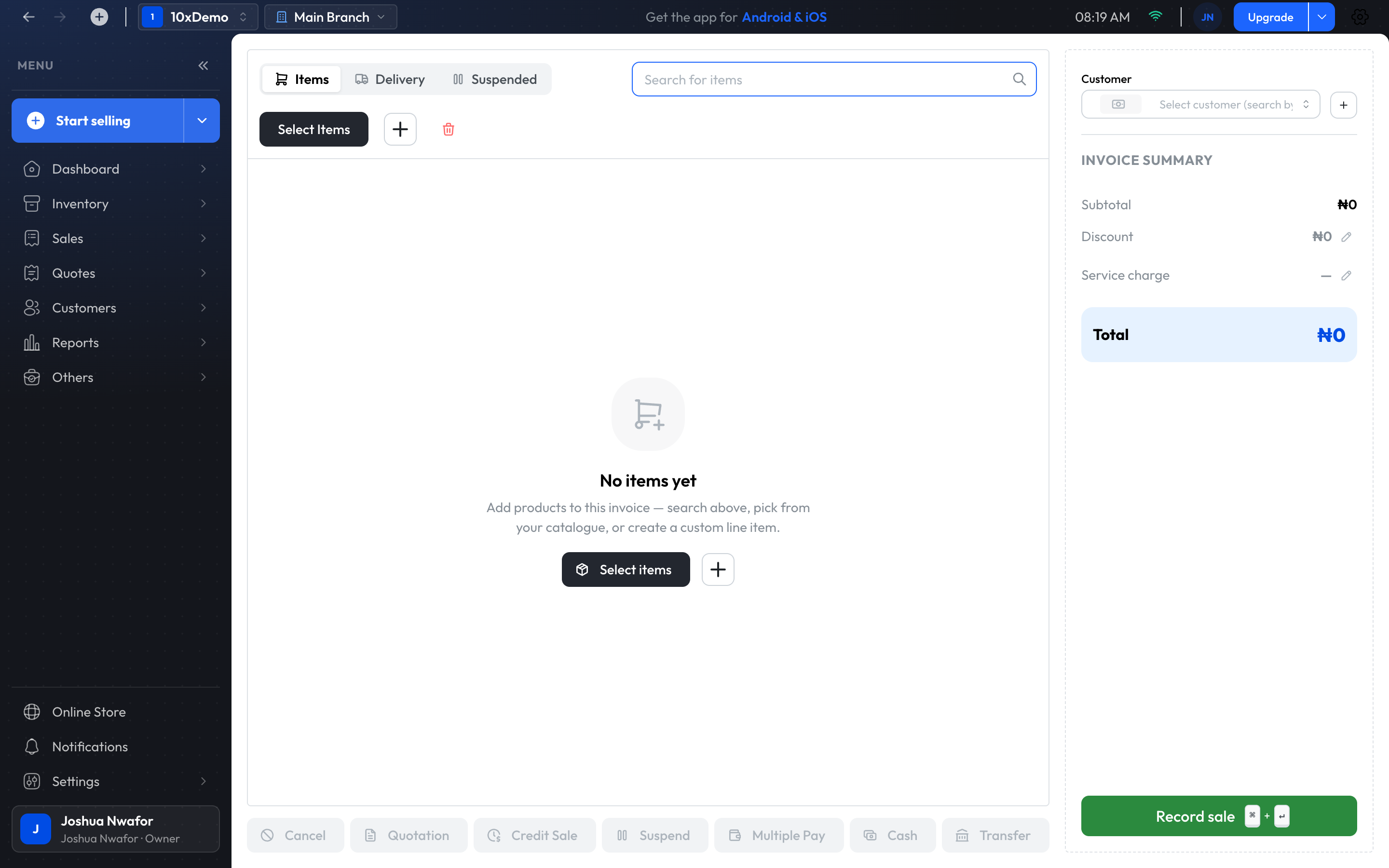
- Choose Start selling at the top of the menu.
- Add items: type or scan in Search for items, or use Select Items. The + adds a one-off item that isn't in your products.
- Choose the customer, or leave it empty for a walk-in sale. The + beside the customer box adds a new customer without leaving the checkout.
- Check the invoice summary. Add a discount, tax or service charge if the sale needs one.
- Take payment:
- Cash or Transfer record the whole amount in one step. Confirm the amount and you are done.
- Record sale opens Confirm Payment & Complete Order, where you pick any Payment Method and choose Complete Order.
- Choose Print for a receipt, Print as PDF for the full invoice, or View Details to open the invoice.
Tip
Serial numbers and IMEIs
For products tracked by serial number, scan or type the serial number or IMEI in Search for items. That exact item is added to the sale, and the invoice records which one the customer took. See Unique Instances.
Wholesale prices and price lists
If the branch has wholesale pricing on, tick Use wholesale price under the items to charge wholesale prices for this sale. If you have active price lists, Select price list applies one.
Delivery
The Delivery tab records that an order needs delivering: tick This order requires delivery and fill in the address, recipient, contact phone and expected date. When the goods arrive, open the invoice and choose Actions → Mark as delivered.
Payment methods
Confirm Payment & Complete Order offers Cash, Credit Card, Check/Cheque, Bank Transfer and Online Payment.
Paying with more than one method
- On the payment screen, tick Allow split payment. Or choose Multiple Pay on the checkout.
- Use Add Part for each method, and enter its amount.
- When the parts add up to the total, the badge reads Matched and you can choose Complete Order.
Split payment can't be combined with a credit sale.
Sell on credit or take a part payment
- Choose a customer. They need a name and a phone number.
- Choose Record sale and switch on Purchase on Credit. Choosing Credit Sale on the checkout first switches it on for you.
- Enter any Initial Payment Amount the customer is paying now.
- Set when the balance is due, then choose Complete Order.
Collect the balance later
- Open Sales → Manage Sales. The Outstanding tab lists invoices with money owing.
- Open the invoice.
- In the Payments panel choose Add, and enter the amount and method. Clear All records everything still owed as one cash payment.
To take one payment against everything a customer owes, use Clear Balance on the customer. See Customers.
Park a sale
A customer steps away mid-sale? Choose Suspend. The sale is saved on this computer. Open the Suspended tab and choose Resume to bring it back.
POS checkout
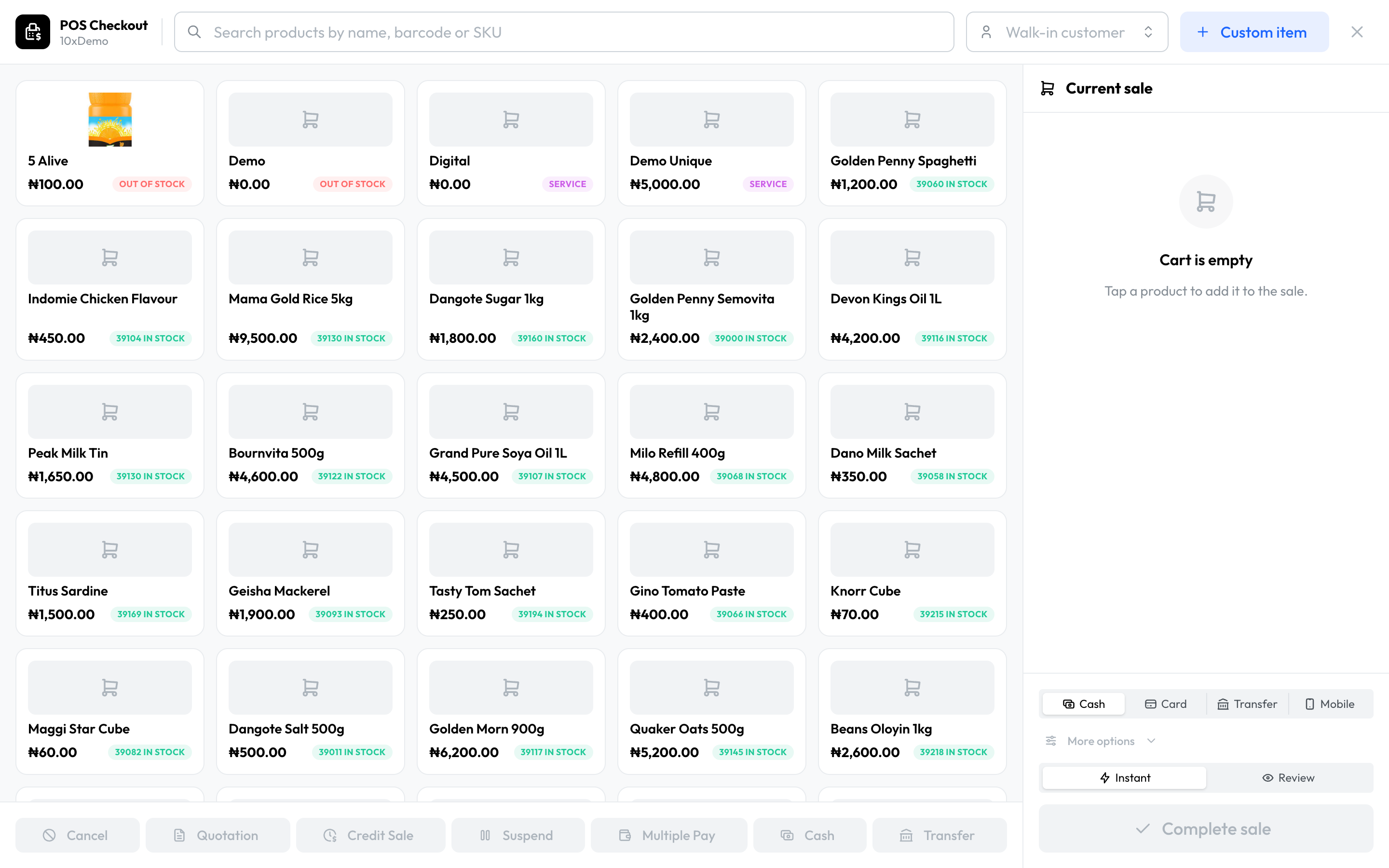
POS checkout, under the arrow beside Start selling, is a full-screen till for quick sales: tap products, then take payment by Cash, Card, Transfer or Mobile. It has no part-payment, delivery or wholesale options; use the normal checkout for those.
Find a past sale
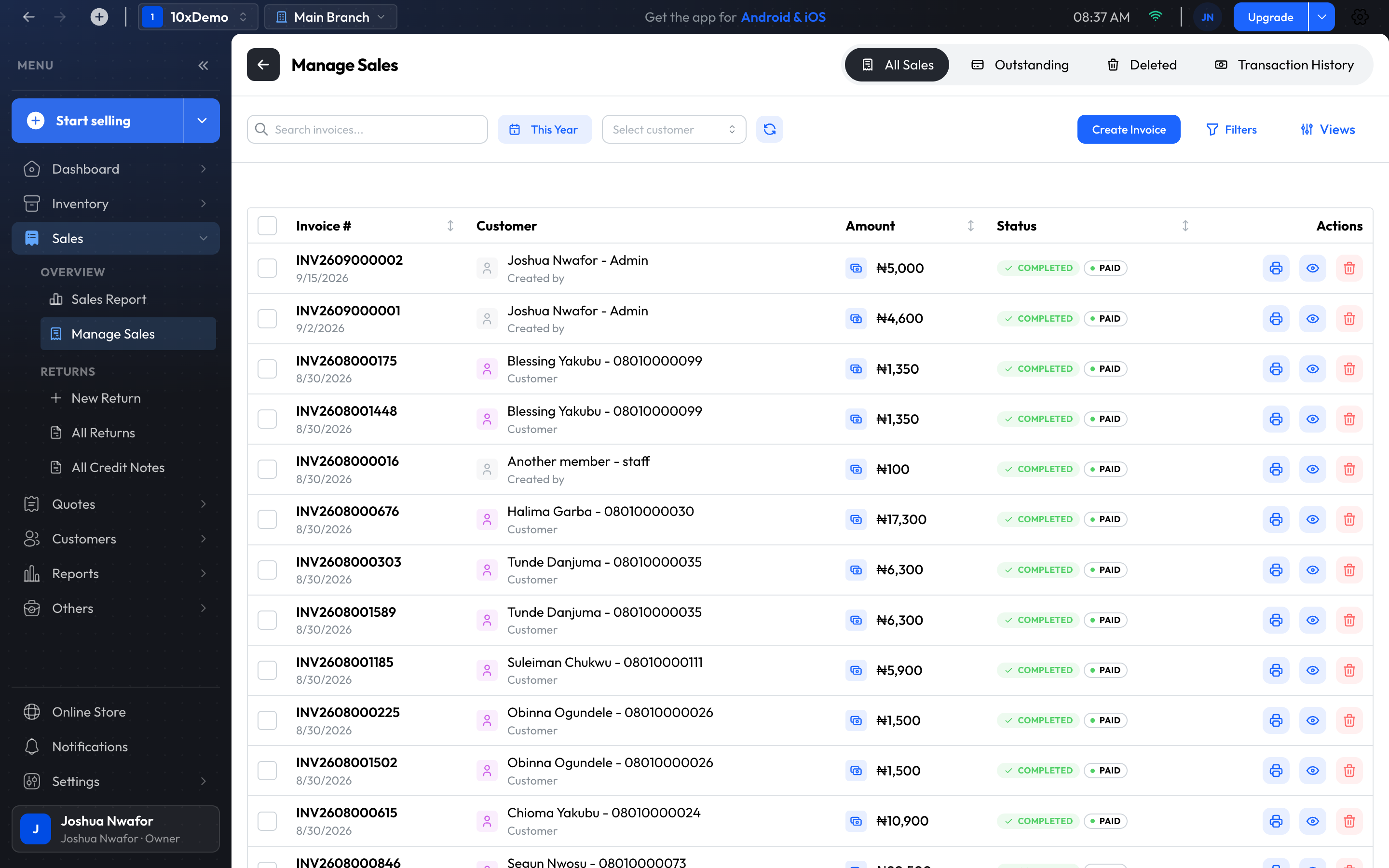
Sales → Manage Sales has four tabs: All Sales, Outstanding, Deleted and Transaction History.
- Search invoices..., the period selector (it starts on This Month) and Select customer narrow the list.
- Views has shortcuts such as Unpaid Invoices, Overdue Invoices and Delivery Required.
- Filters filters by invoice status, payment status, customer, and the team member who made the sale.
- The table shows the invoice number, customer, amount and status. To show more columns, such as amount due, due date or discount, go to Settings → App Preferences.
Change an invoice
Open the invoice. The page is Invoice Details.
- Add Item adds a line: a product, a serial-tracked item, or a custom item. A line's menu has Remove Item.
- Print → Print or Print as PDF.
- Actions → Mark as delivered.
- Actions → Mark as Completed. An invoice must be fully paid first.
- Actions → Cancel Invoice.
- Actions → Delete Invoice.
Cancel or delete?
- Cancel only works if nothing has been paid and nothing delivered. Otherwise the app says to record a return instead.
- Delete isn't offered on a completed invoice in the desktop app, and an invoice with a return or credit note can't be deleted. Deleted invoices are listed in the Deleted tab.
- For goods that have been paid for or handed over, record a return. It puts the stock back and keeps the history straight.
Important
Returns and credit notes
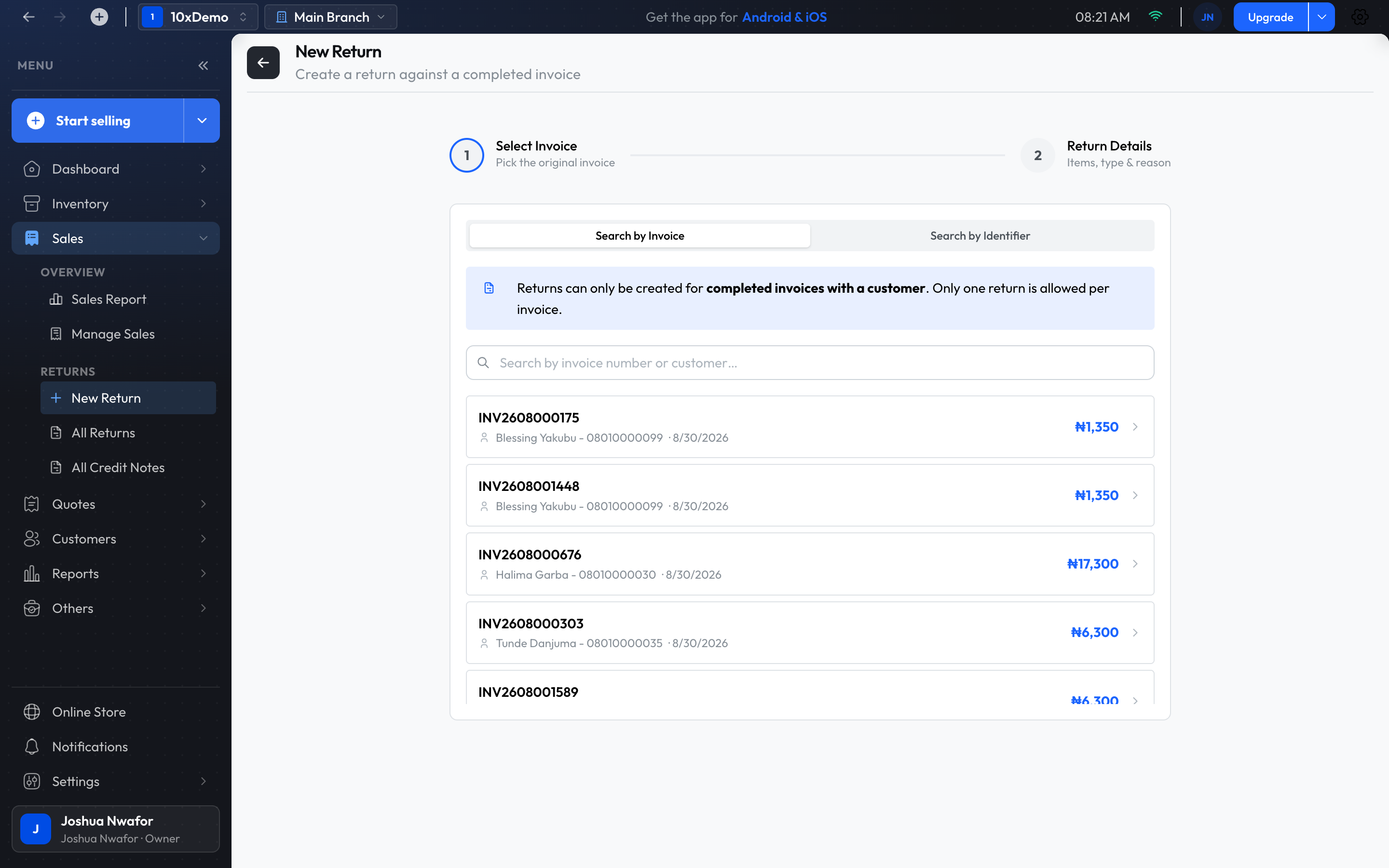
- Open Sales → New Return.
- Find the invoice, by invoice number or by an item's serial number.
- Choose the Return type:
- Paid Return: the customer gets money back, in cash or by bank transfer.
- Unpaid Return: no refund; it reduces what the customer owes.
- Enter the quantity of each item coming back, and a reason.
- Choose Submit Return.
After a paid return, open it from All Returns and choose Issue Credit Note to give the customer a document for the refund. All Credit Notes lists the ones you have issued.
Good to know
- Receipts and invoices are printed or saved as PDF. The app doesn't send them by WhatsApp or email.
- A sale of an item with no stock goes through unless the branch has Allow Sales Without Stock turned off.
- To record who made each sale on a shared till, have each person use Switch Member. See Team & Roles.
Related
Still stuck? Contact support.