
Expenses & Other Tools
The Others section of the menu holds the money records that aren't sales, the record of who did what, automatic alerts, and moving data in and out.
- Where to find it
- Others
- Who can use it
- Roles that can see expenses or transactions. Automations are for owners and admins.
Expenses
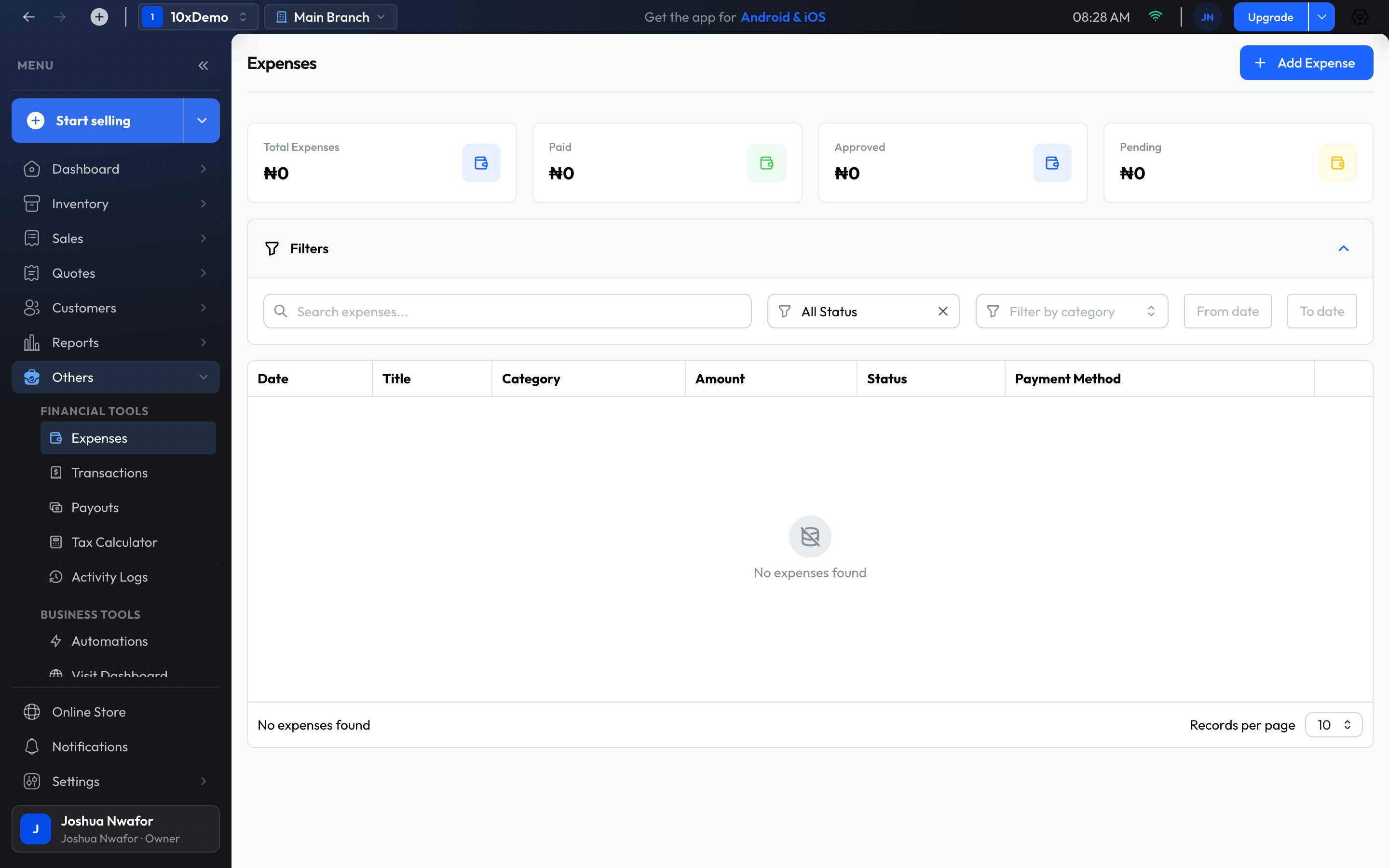
Record what the business spends, so profit and loss is right.
- Open Others, then Expenses.
- Choose Add Expense.
- Fill in the Title, Category, Amount, Expense Date, Payment Method and Status. Reference and Notes are optional.
- Choose Create Expense.
The categories are Utilities, Rent, Supplies, Salary, Maintenance, Marketing, Travel, Logistics and Other.
Approving expenses
- A pending expense has Approve Expense and Reject Expense.
- An approved expense has Mark as Paid.
Important
Finding an expense
The cards at the top total Total Expenses, Paid, Approved and Pending. Open Filters to search, or to filter by status, category or date. Each row's menu has View Details, Edit Expense and Delete Expense.
Transactions
Others → Transactions lists money in and out for the period you pick, with Total Received, Total Spent and Net Balance at the top. Each row shows what it was for, the amount, the method and the status, and links to the sale or expense behind it.
Transactions are created by the things you record elsewhere: payments on sales, and expenses. You don't add them here.
Payouts
Others → Payouts shows money from online store orders being settled to your bank account: what has been Paid out, what is Pending, and anything that Needs attention. Open a row to see the account it was paid to, the orders it covers, and the reason if it failed. See Online Store.
Tax Calculator
Others → Tax Calculator is a Nigerian PAYE calculator. Enter a gross annual income and any deductions, and it estimates the income tax on a salary. It is a guide only and doesn't change any record. The tax added to sales is something else, set in Settings → Branch preferences → Default Tax Rate.
Activity Logs
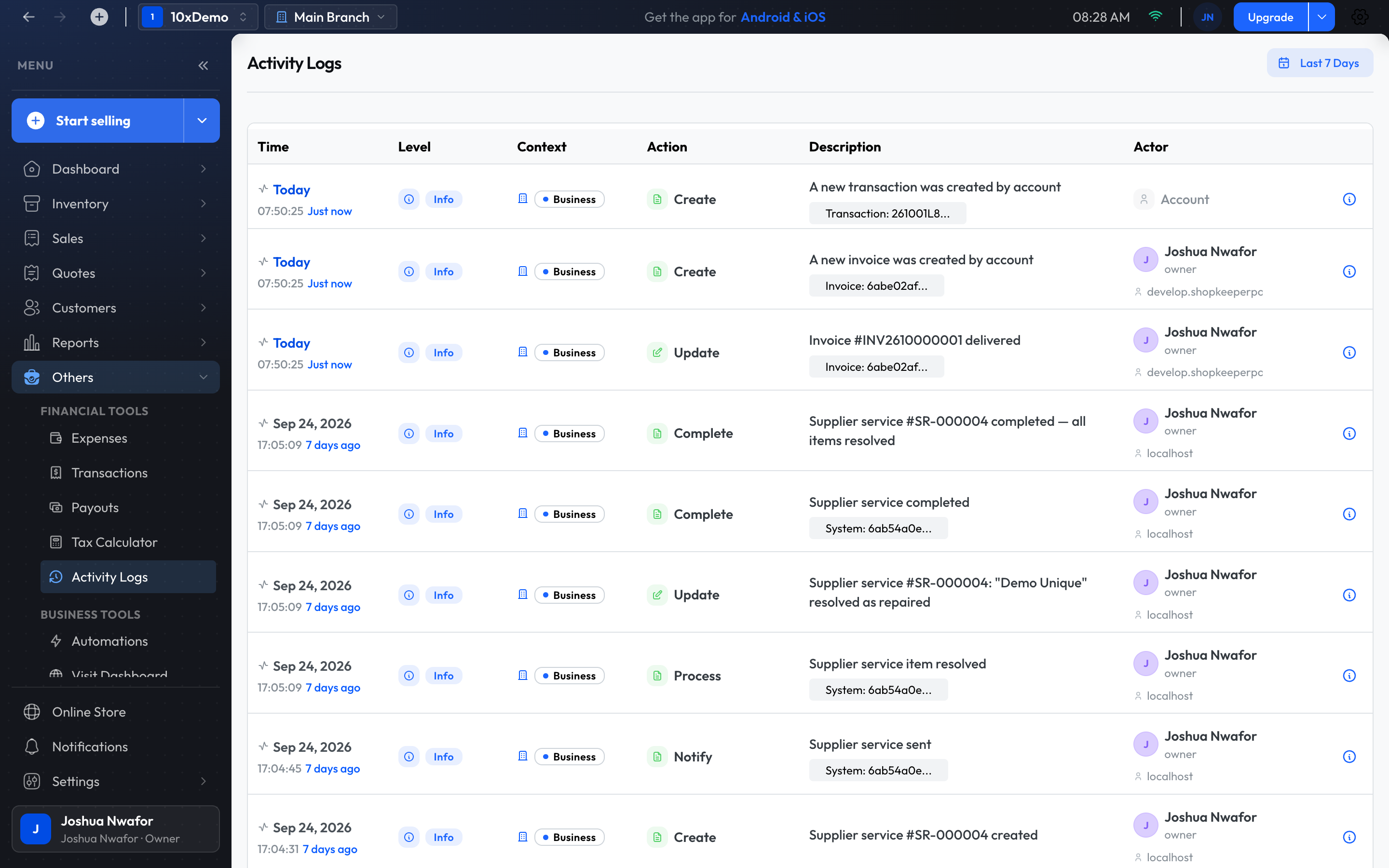
Others → Activity Logs is the record of what was done in the app and by whom. It starts on the last 7 days; change the period at the top. Each row shows the time, what was done, a description and who did it. The eye icon opens the full details.
Tip
Automations
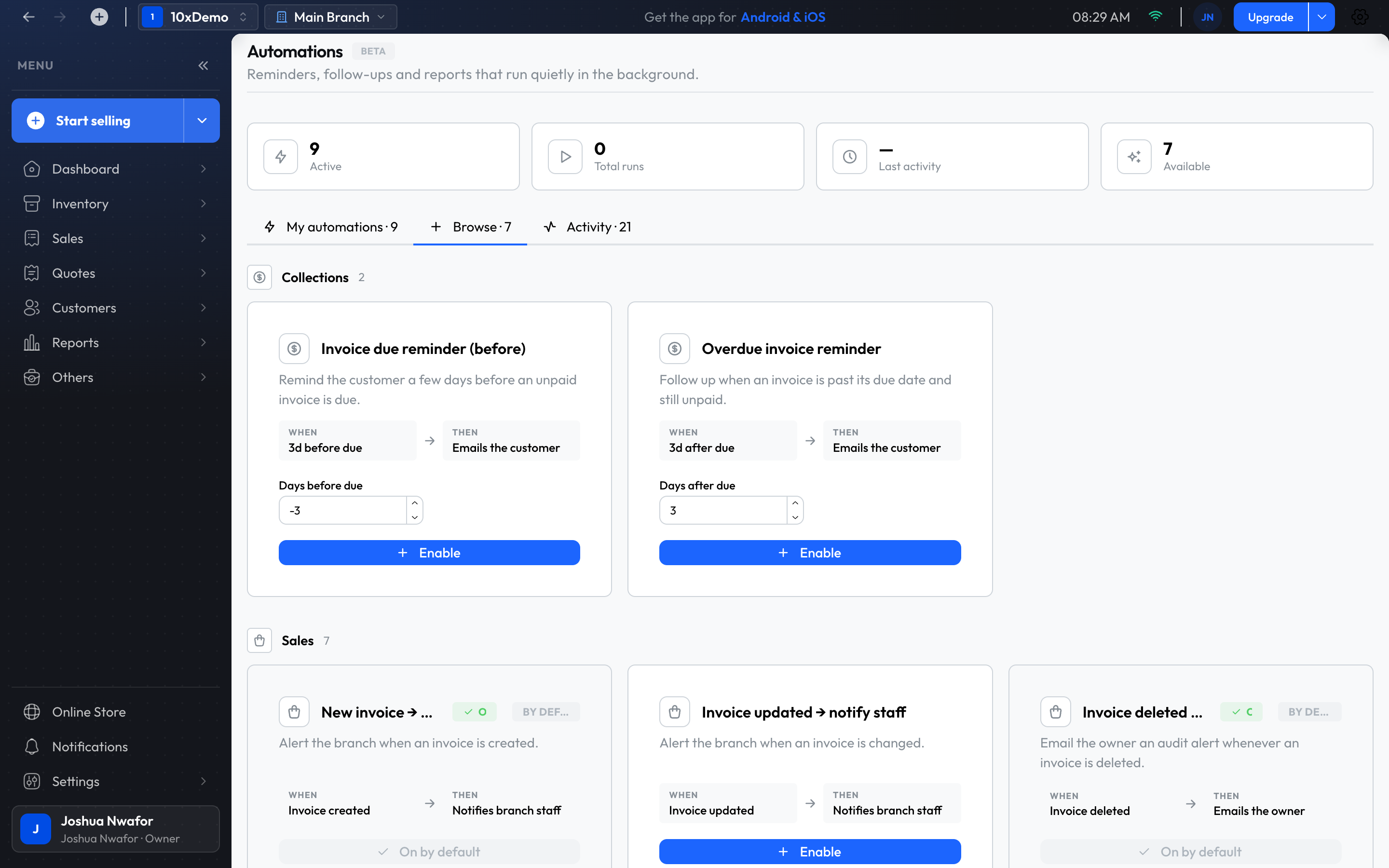
Automations are reminders, alerts and reports that run by themselves: "when this happens, do that".
Others → Automations has three tabs:
- My automations: the ones you have. Use the switch to pause or resume one, and the bin to remove it.
- Browse: ready-made automations. Choose Enable on the ones you want. Some have a number to set, such as how many days before the due date.
- Activity: what ran, and whether it worked.
Ready-made automations
- Collections: email a customer before an invoice is due, and when it is overdue.
- Sales: tell staff about a new or changed invoice, a payment received or a quote accepted; email the owner when an invoice is deleted; text a customer a thank-you after payment; follow up a quote before it expires.
- Inventory: a low-stock alert to staff and an out-of-stock alert to the owner, at most once a day.
- Retention: welcome a new customer by text, and win back customers who haven't bought for a while.
- Reports: email the owner a daily sales snapshot, a weekly sales report and a monthly profit and loss.
Some are on from the start and carry a Standard badge: new invoice, payment received, quote accepted, invoice deleted, the two stock alerts and the three owner reports. They can't be removed, but you can switch them off.
Messages follow each person's notification choices in Settings → Account Preferences, and a reminder is sent at most once a day for each item.
Import Data
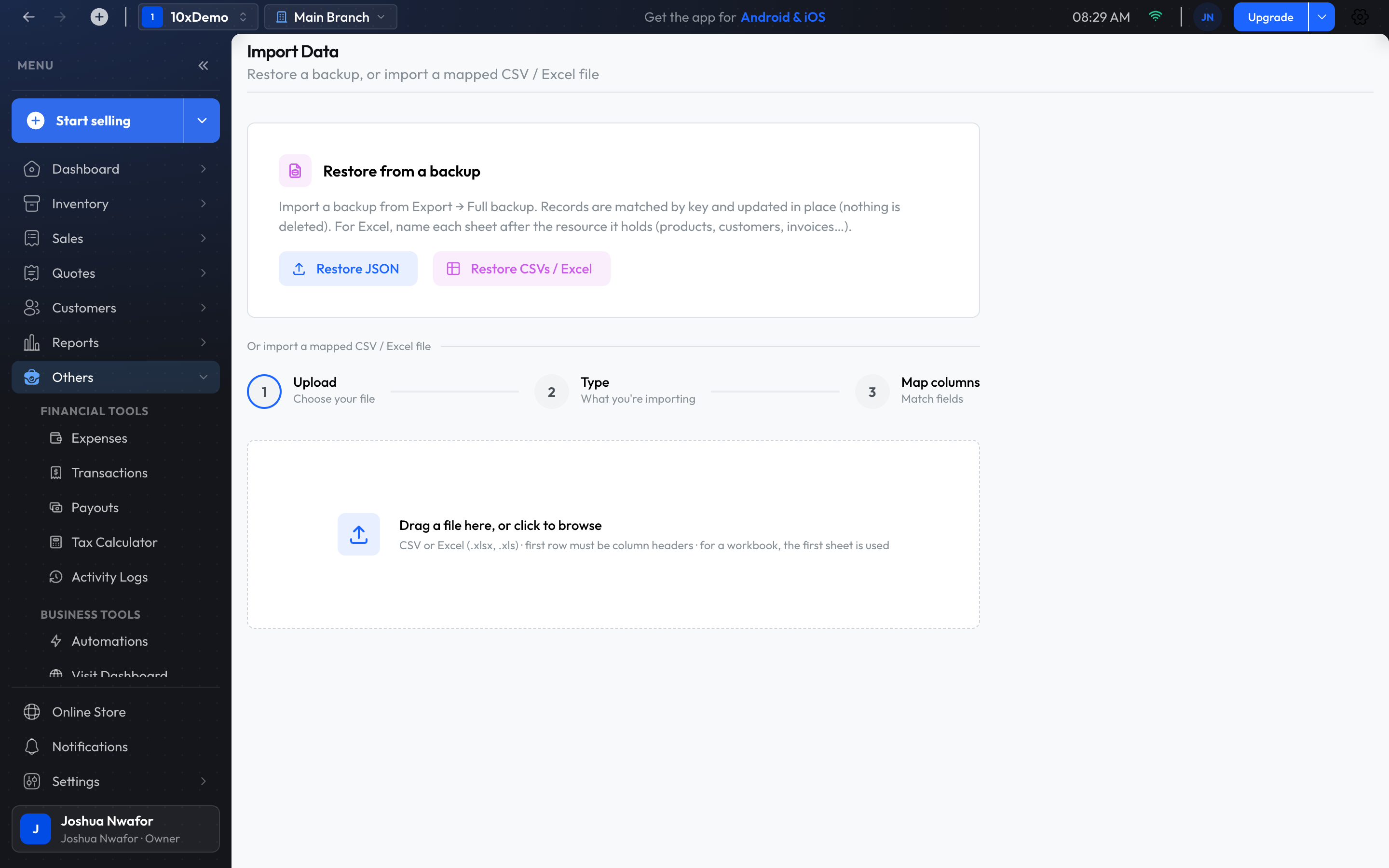
Bring in customers, products or invoices from a spreadsheet.
- Open Others, then Import Data.
- Under Sample file, download the CSV or Excel template and fill it in. The first row must be the column headings.
- Upload the file. It can be CSV or Excel, up to 15 MB. For Excel, the first sheet is used.
- Choose what it holds: Customers, Products or Invoices.
- Choose Map columns & import and match each of your columns to a field.
- Choose Start import.
When it finishes, any rows that couldn't be imported are listed with the reason, so you can fix just those and import them again.
Tip
Restore from a backup
At the top of Import Data, Restore from a backup takes a backup made with Export Data. Records that already exist are updated and missing ones are added; nothing is deleted.
Export Data
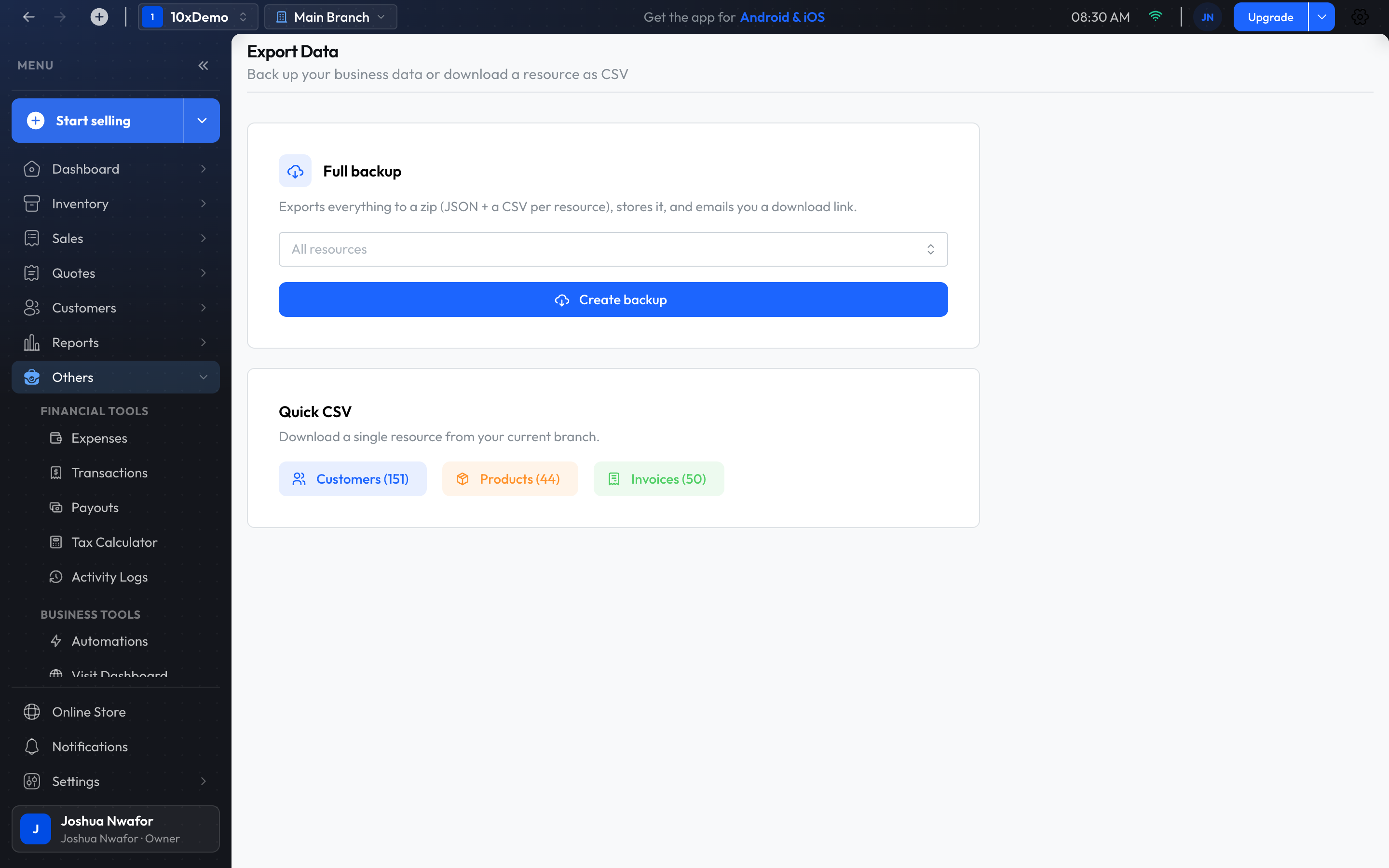
- Full backup: choose Create backup. The app makes a zip of everything (or just the kinds of record you pick), gives you a download link and emails it to you as well.
- Quick CSV: download this branch's Customers, Products or Invoices as a spreadsheet.
To export a report instead, open it in Reports and choose Export.
Other links in this menu
- Visit Dashboard opens the browser version at web.shopkeeperpos.com.
- Download mobile app opens the download page.
Related
Still stuck? Contact support.