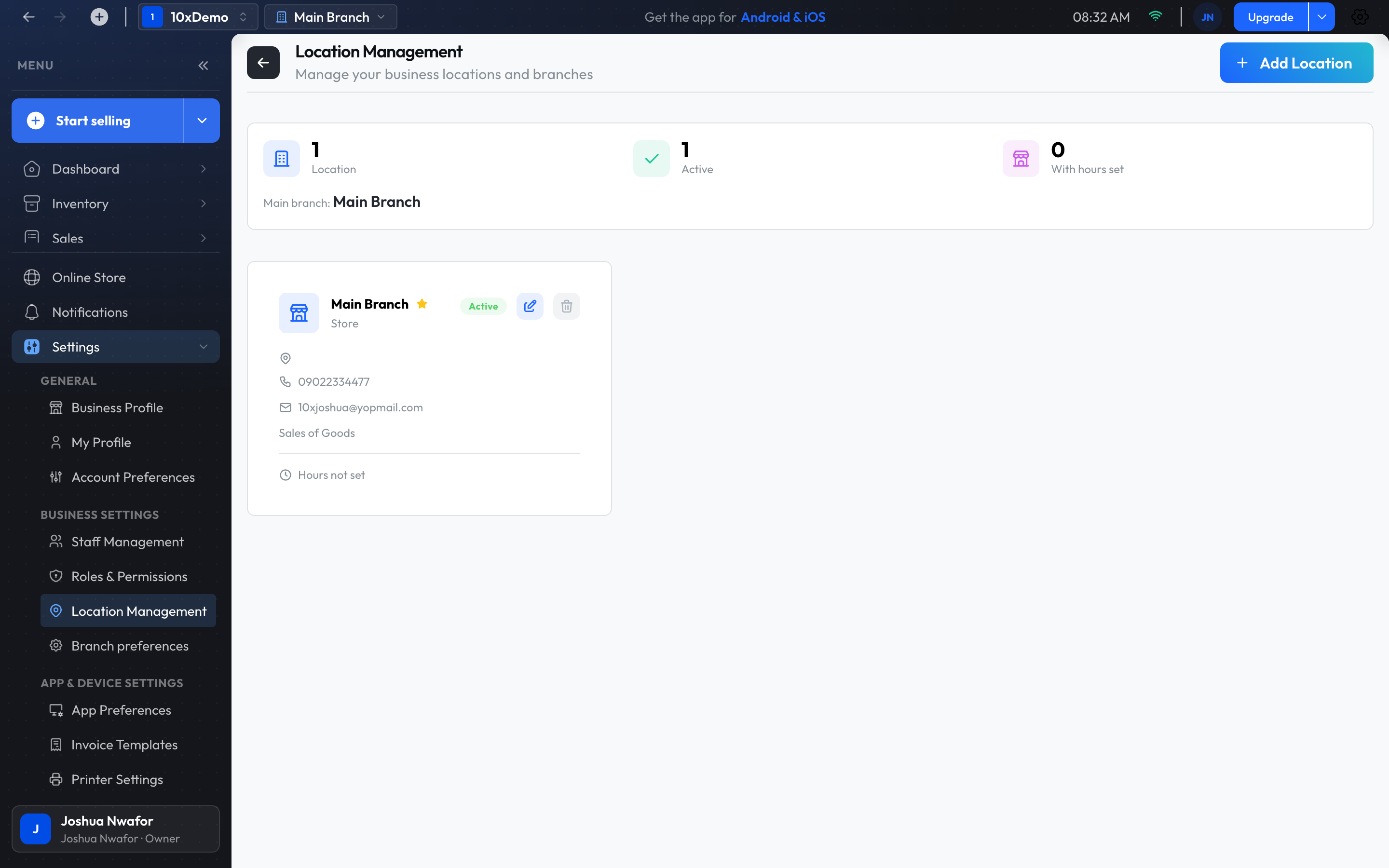
Multi-Location Management 🏪

If you run multiple stores, branches, or locations, ShopkeeperPOS Desktop makes it easy to manage them all from one place. You can track inventory, sales, and staff across all your locations.

Perfect for: Businesses with multiple branches, pop-up shops, market stalls, or any business that operates from more than one location.

What Are Locations?

Locations in ShopkeeperPOS represent different physical places where you do business. Each location can have:

  • Its own inventory and stock levels
  • Separate sales records
  • Different staff members
  • Unique settings and preferences

Adding Your First Location

To add a new location:

  1. Navigate to Settings Location Management
  2. Click "Add Location"
  3. Fill in the location details:
    • Location Name: e.g., "Downtown Store" or "Main Branch"
    • Address: Physical address of the location
    • Contact Information: Phone, email, etc.
    • Settings: Location-specific preferences
  4. Click "Save"

💡 Tip

Tip: Give your locations clear, descriptive names that make it easy to identify them when viewing reports or transferring stock.

Switching Between Locations

You can easily switch which location you're viewing:

  1. Look for the location selector in the top navigation bar
  2. Click on the current location name
  3. Select the location you want to view
  4. All data will filter to show only that location's information

Managing Inventory Across Locations

Stock Transfers

Move inventory between locations:

  1. Go to InventoryStock Transfers
  2. Click "New Transfer"
  3. Select the source location (where stock is coming from)
  4. Select the destination location (where stock is going)
  5. Add products and quantities to transfer
  6. Review and confirm the transfer

Viewing Location-Specific Inventory

To see inventory for a specific location:

  • Switch to that location using the location selector
  • Or filter inventory reports by location
  • Each location maintains its own stock levels

Location-Specific Reports

Generate reports for individual locations or compare across locations:

  • Sales Reports: See sales performance by location
  • Inventory Reports: View stock levels at each location
  • Staff Reports: Track staff performance by location
  • Comparison Reports: Compare performance across locations

Location Settings

Each location can have its own settings:

  • Business Hours: Set different hours for each location
  • Tax Settings: Configure location-specific tax rates
  • Printer Settings: Set up printers for each location
  • Notification Preferences: Location-specific notifications

Staff Management by Location

Assign staff members to specific locations:

  1. Go to SettingsStaff Management
  2. Edit a staff member's profile
  3. Assign them to one or more locations
  4. Set location-specific permissions if needed
Staff Access: Staff members can be assigned to multiple locations, allowing them to work at different branches as needed.

Best Practices

  • Consistent Naming: Use a consistent naming convention for all locations
  • Regular Transfers: Keep track of stock transfers between locations
  • Location Reports: Review location-specific reports regularly to identify trends
  • Staff Training: Ensure staff know how to switch locations when working at different branches

💡 Tip

Pro Tip: Use location-specific reports to identify which locations are performing best and which might need additional support or inventory.

Common Use Cases

Multiple Store Locations

Manage inventory and sales across multiple physical stores, each with its own stock and staff.

Market Stalls or Pop-ups

Set up temporary locations for markets or pop-up shops, then archive them when done.

Warehouse and Store

Separate your warehouse inventory from your retail store, transferring stock as needed.

💡 Need Help?

Managing multiple locations can seem complex at first, but ShopkeeperPOS makes it easy. If you need help setting up locations or have questions, contact our support team—we're here to help!