
Settings
Settings is at the bottom of the menu. Some sections apply to the whole business, some to the branch you are in, and some only to the computer you are using.
- Where to find it
- Settings
- Who can use it
- Everyone can open Settings. Business Profile and the Business Settings group are for owners and admins; Staff Management and Location Management are for the owner only.
What is in Settings
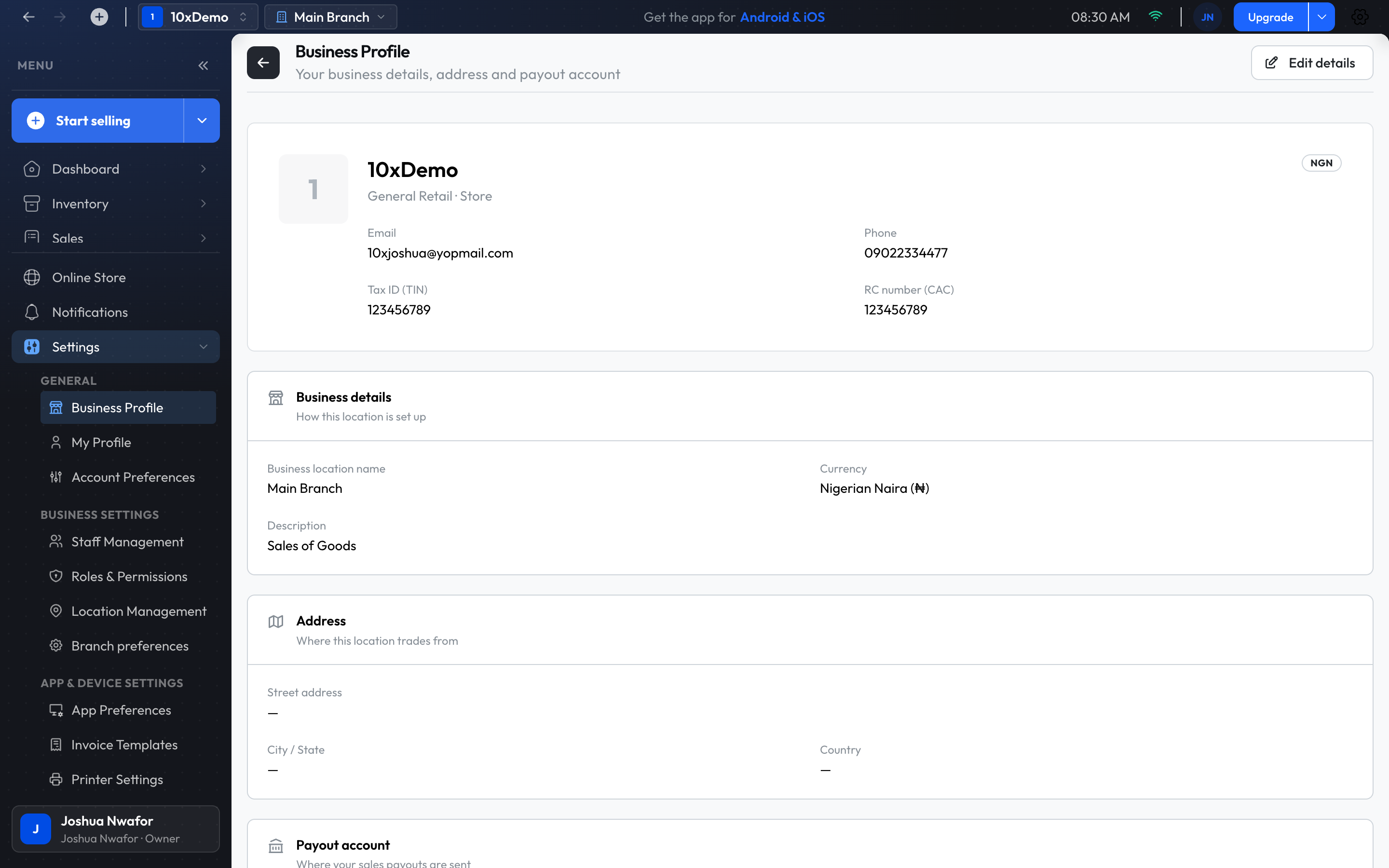
General
- Business Profile: logo, business name, contact details, tax (TIN) and CAC numbers, currency, the payout account for online sales, and whether online orders are accepted automatically. Use Edit details to change them.
- My Profile: your own details.
- Account Preferences: which notifications you get, by email, push and SMS.
Business Settings
- Staff Management and Roles & Permissions: see Team & Roles.
- Location Management: see Branches.
- Branch preferences: how this branch sells. Covered below.
App & Device Settings
- App Preferences: choices for this computer only, such as keeping the menu collapsed, and a short version of the printing options.
- Invoice Templates: how invoices and receipts look. Covered below.
- Printer Settings: see Printing.
The subscription isn't under Settings. Use the subscription button at the top of the app. See Plans & Billing.
Branch preferences
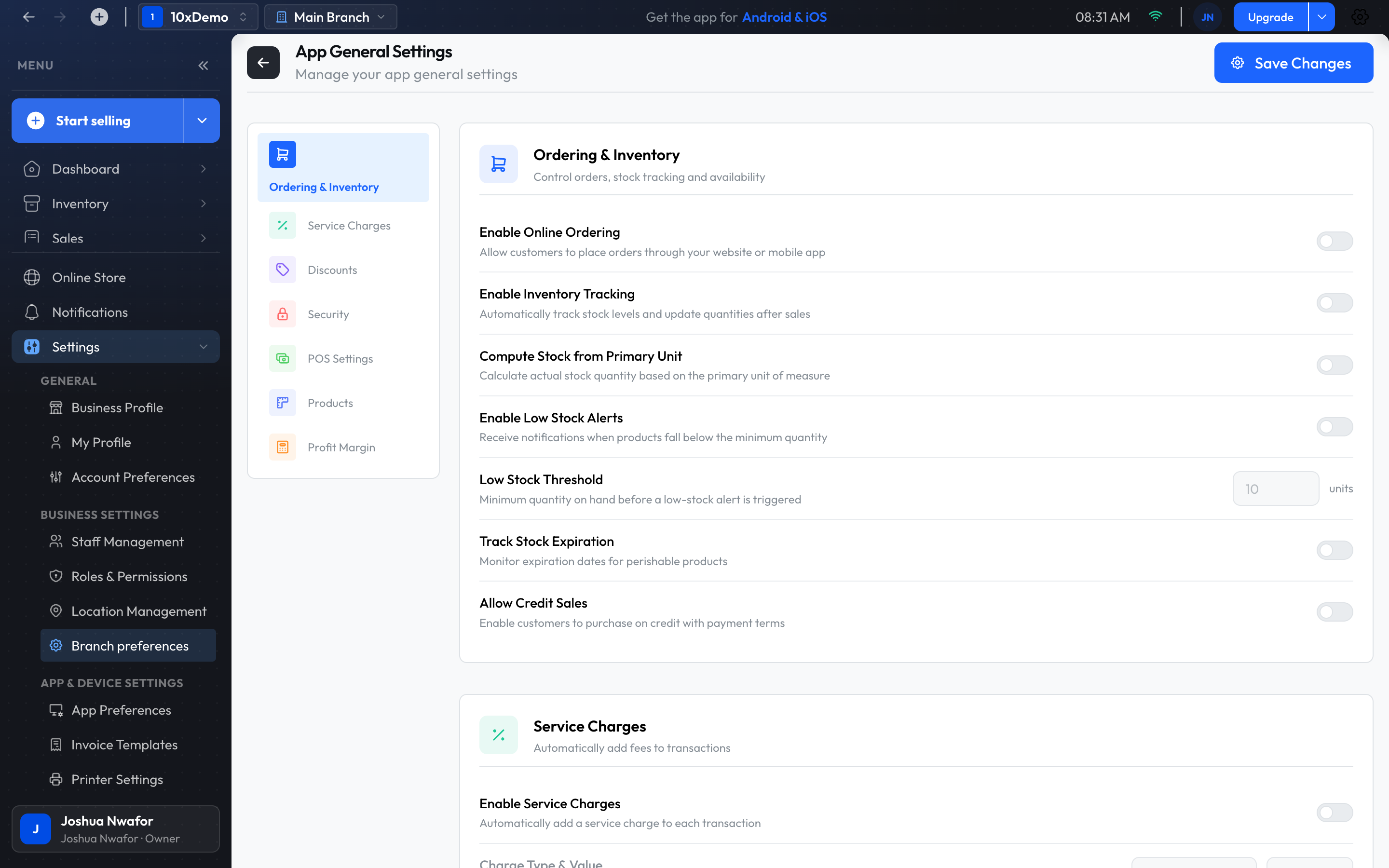
These options apply to the branch you are in, so each branch can be set differently. Change what you need and choose Save Changes.
Ordering & Inventory
- Enable Online Ordering and Enable Inventory Tracking.
- Compute Stock from Primary Unit: for products sold in more than one unit.
- Enable Low Stock Alerts and Low Stock Threshold: the level at which a product counts as running low, unless the product has its own.
- Track Stock Expiration: for products that expire.
- Allow Credit Sales: lets customers buy now and pay later.
Service Charges
- Enable Service Charges, then set Charge Type & Value: a percentage or a fixed amount added to each sale.
Discounts
- Enable Discounts, and Default Invoice Discount if every sale should start with one.
Security
- Enable Member PIN Login: asks who is using the app, with their PIN, when it opens. Turn this on for shared tills.
Point of Sale
- Enable "Transacted By" on Invoice Creation: record which team member made each sale.
- Disable Checkout Price Editing: stops prices being changed at the checkout.
- Show Product Images and Enable Quick Quantity.
- Enable Split Payment: lets one sale be paid with more than one method.
- Enabled Payment Methods: the methods offered when taking payment.
- Default Tax Rate: the tax percentage applied to products that don't have their own rate. Enforce Tax for New Invoices adds it to every new sale.
Products
- Enable Unit of Measure: sell a product in several units, such as pieces and cartons.
- Enable Wholesale Pricing: keep a wholesale price beside the selling price.
Profit Margin & Pricing Controls
- Enforce Minimum Profit Margin and Minimum Profit Margin: stop sales below a margin you set.
- Restrict Negative Profit Margin: stop sales below cost.
- Allow Sales Without Stock: on by default. When on, a sale goes through even if the product has none left, and the stock level goes below zero until you correct it. Turn it off to block a sale unless there is stock. Sales made offline are always accepted.
Tip
If staff sell faster than deliveries are recorded, leave Allow Sales Without Stock on and correct the counts later. If your counts must never go negative, turn it off.
Invoice Templates
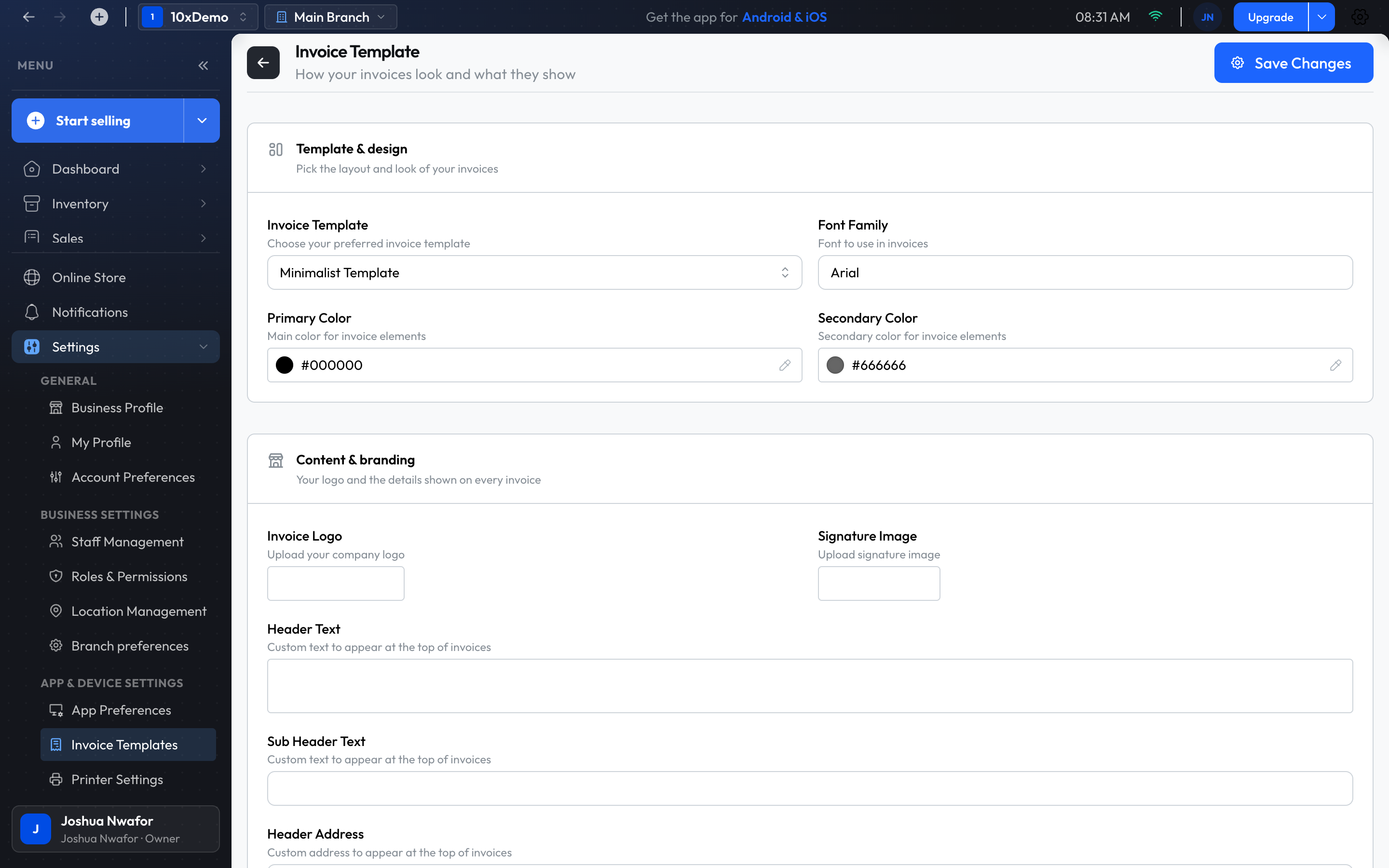
These settings decide how printed invoices and receipts look for this branch. Choose Save Changes when done.
- Template & design: the Invoice Template (Modern, Classic, Minimalist or Professional), Font Family, Primary Color and Secondary Color.
- Content & branding: Invoice Logo, Signature Image, Header Text, Sub Header Text, Header Address, Slogan Text, Phone Number and Footer Text.
- Display options: Show Logo, Show Signature, Show QR Code, Show Tax ID (TIN) and Show RC number (CAC).
- Payment methods: the methods listed on the invoice.
If you leave Header Text empty, the business name is used. If you leave Footer Text empty, receipts end with a thank-you line.
What is saved where
- Whole business: Business Profile, staff, roles and locations.
- This branch: Branch preferences and Invoice Templates.
- This computer: Printer Settings and App Preferences.
Related
Still stuck? Contact support.