
Unique Instances
For products where every unit is different — phones, laptops, appliances — ShopkeeperPOS can track each one by its IMEI or serial number, so you always know which unit was sold, to whom, and what happened to it since.
- Where to find it
- InventoryBarcodes & items
- Who can use it
- Serial numbers are on the Premium plan and above. Registering items is for roles that manage inventory.
How it works
A Unique Instance product is one product, such as "iPhone 15 128GB Black", with each unit registered separately by its identifier. Each registered unit is an instance. Stock is the number of instances that are available.
An identifier can be any of these:
- Serial Number
- IMEI
- MAC Address
- Asset Tag
- Batch Number
1. Create the product
- Open Inventory → Manage Inventory and choose Add Product.
- Set Product Type to Unique Instance.
- Enter the name, selling price and cost price.
- Optionally, scan the units you have now into the barcode box, pressing Enter after each. Each barcode is tracked as its own item.
- Choose Create Product.
Adding many products at once? Bulk Create has a Unique instance session type. See Products.
2. Register units as they arrive
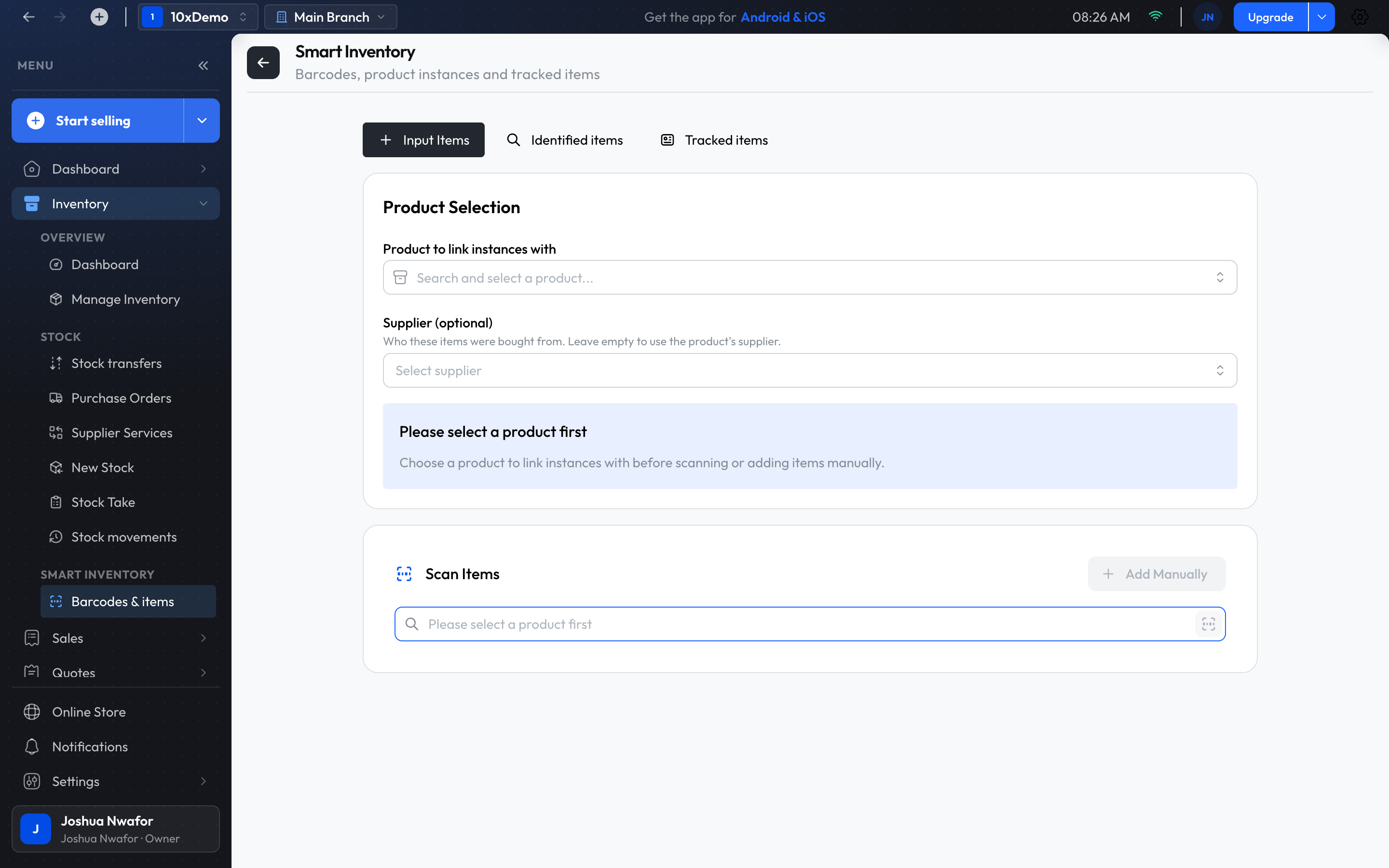
- Open Inventory → Barcodes & items. It opens on Input Items.
- Under Product Selection, pick the product the units belong to.
- Scan each unit's IMEI or serial number into Scan Items. To type one in, with its type, barcode, location or a note, use Add Manually.
- Check the list under Pending Items, then choose Submit All.
Tip
3. Sell a unit
- At the checkout, scan or type the unit's IMEI or serial number in Search for items.
- When it matches exactly one unit, that unit is added to the sale by itself.
- Take payment as usual.
The unit is marked sold and linked to the invoice, so you can later see who bought it and when. To add a unit to an invoice that already exists, open the invoice and choose Add Item → Select unique item.
Important
4. Find one unit
A customer brings a phone back, or you need to check whether a unit is still in stock.
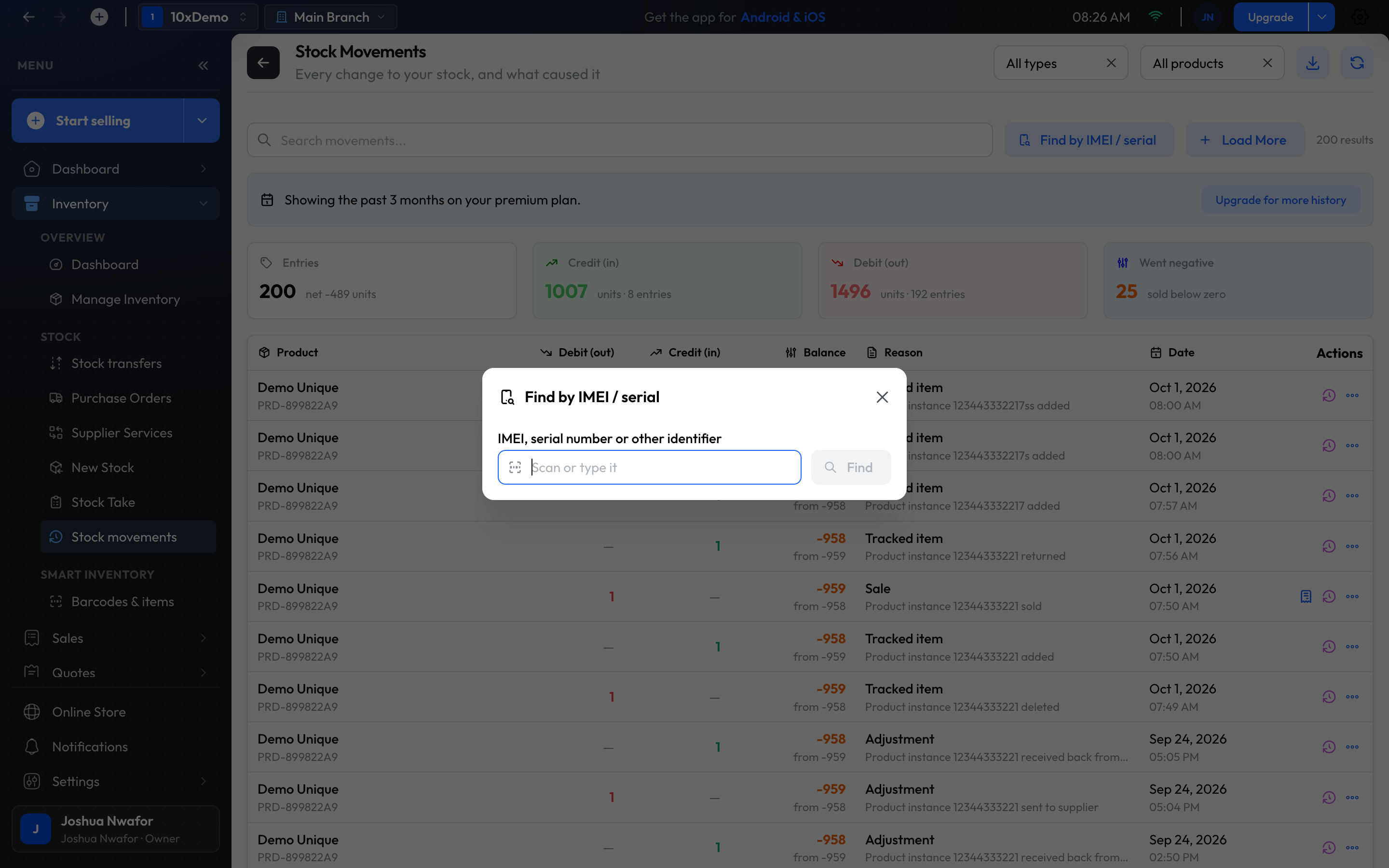
- Open Inventory → Stock movements and choose Find by IMEI / serial.
- Scan or type the identifier and choose Find.
The result shows:
- the product, the identifier and its type, and when it was added;
- its status;
- Sold on: the invoice, customer and date. If the unit has since come back, this reads Last sold on. A Deleted badge means that invoice was deleted.
View invoice opens the sale, Show product movements lists everything that happened to the product, and Open product opens it.
The same search is in Barcodes & items → Tracked items, under the Find by identifier icon.
Every unit at a glance

Barcodes & items has two lists of registered units:
- Identified items: units grouped under their product. Open a product's group to mark a unit as reserved, defective or in repair, or to delete it.
- Tracked items: one list of every unit, with search and filters by status and product. Update status changes a unit's status, with an optional note; Deregister removes a unit you registered by mistake.
Statuses
- available: in stock and can be sold.
- sold: on a customer's invoice.
- reserved: set aside for someone.
- defective and in repair: not fit to sell for now.
- returned: came back from a customer.
- with supplier, replaced and written off: set by Supplier Services, below.
You can set defective, in repair, reserved and returned yourself. Sales and supplier cases set the others.
Returns
- Open Sales → New Return.
- Choose Search by Identifier and scan the unit. This finds the invoice it was sold on.
- Choose the return type and Submit Return.
The unit becomes available again, and its record still points to the sale it came back from. See Sales & Invoices for paid and unpaid returns.
Moving units between branches
In a stock transfer, a Unique Instance product asks you to pick the exact units to send: scan them or choose them from the list. See Inventory.
Repairs, warranty and returns to the supplier
To send a unit back to its supplier, open Inventory → Supplier Services, choose New case and scan the unit's IMEI. A serial-tracked product must be added by its IMEI, not by name.
- While the case is open, the unit is with supplier.
- When you record the outcome, it comes back into stock (Repaired, Serviced, Inspected, Returned Unresolved, Rejected), is replaced, or is written off (Credit Issued, Refunded, Scrapped, Other).
The history of every unit
Each time a unit is registered, sold, returned, deleted or sent to a supplier, Stock movements records it with the reason Tracked item or Sale and names the unit, for example "Product instance 356938035643809 sold".
Good to know
- An IMEI or serial number can be registered only once in the business. Registering one that already exists is refused, which stops the same phone being booked in twice.
- Units sold by adding a line to an existing invoice before September 2026 may show no invoice when you look them up.
- Printing barcode labels for units isn't available; use the manufacturer's label or box.
Related
Still stuck? Contact support.