
Team & Roles
Give each person their own profile, role and PIN, so every sale is recorded under the right name and people only see what their job needs.
- Where to find it
- SettingsStaff Management
- Who can use it
- Only the owner can add staff. Team members are on the Basic plan and above.
Add a team member
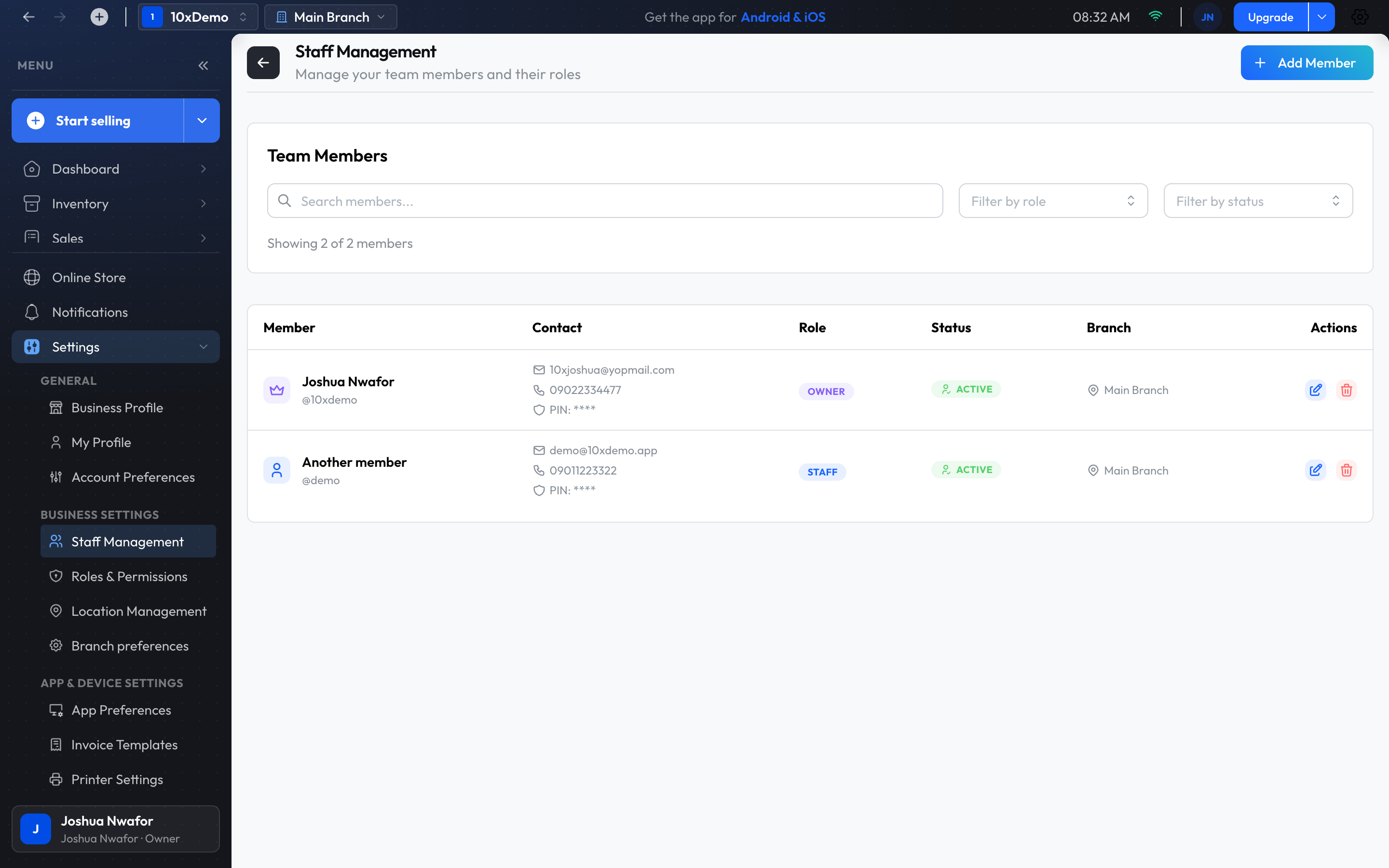
- Open Settings, then Staff Management.
- Choose Add Member.
- Fill in their name, username, phone number and role, and tick the branches they work in.
- Set their 4-digit PIN and save.
Important
Roles
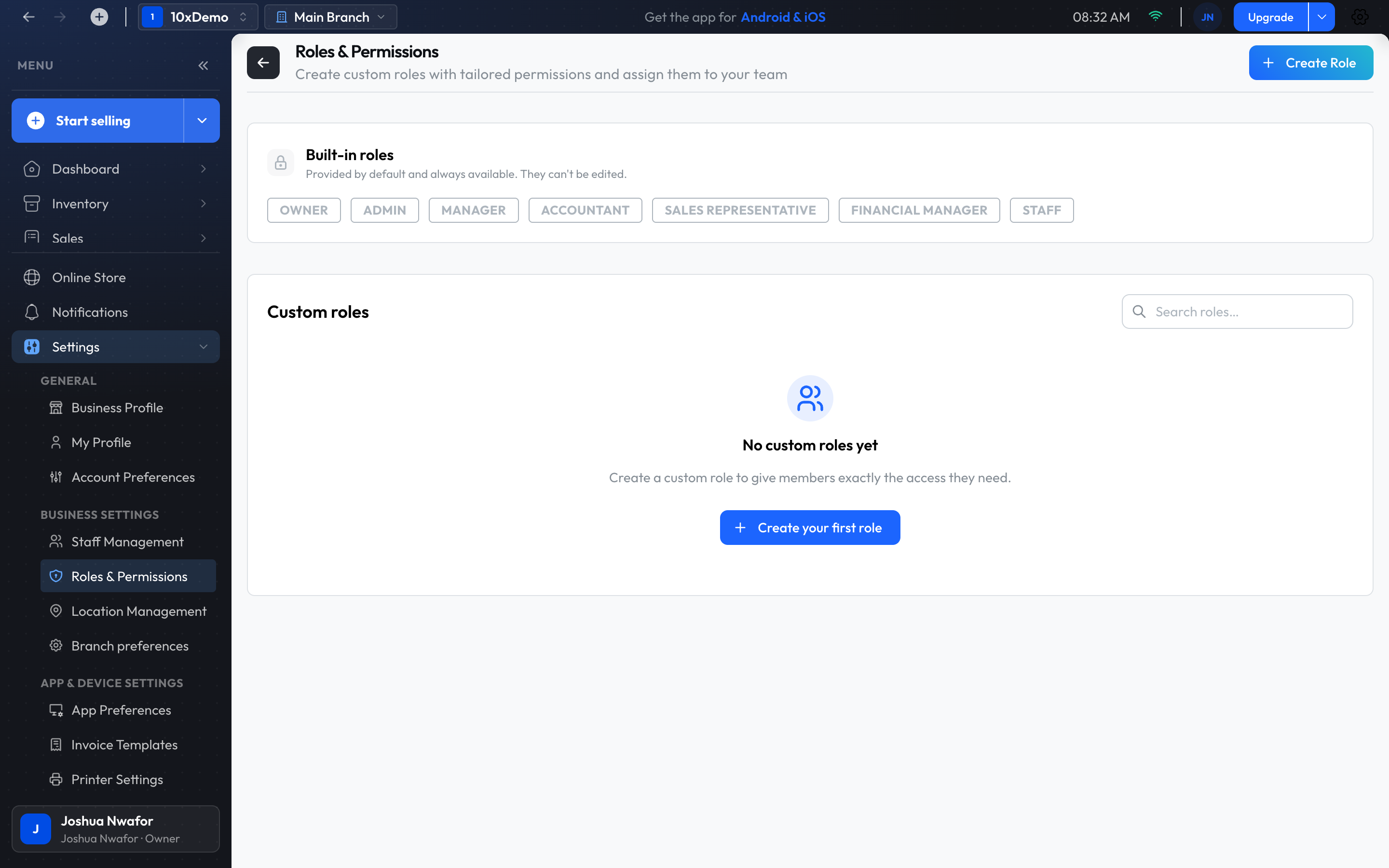
The app comes with seven roles:
- Owner: everything, including the subscription, staff and branches.
- Admin: runs the business day to day. Can't change the subscription, and in the desktop app can't add staff or branches.
- Manager: products, stock, customers and sales. Approves stock takes and transfers. Can't delete records or manage staff.
- Staff: sells, makes quotes, adds customers, receives deliveries and counts stock. Doesn't see reports or business settings.
- Sales Representative: customers, quotes and sales.
- Financial Manager and Accountant: invoices, expenses and reports.
Make your own role
- Open Settings, then Roles & Permissions.
- Choose Create Role.
- Name the role and tick the permissions it should have.
- Save, then give the role to a team member.
Who sees cost and profit
Profit & loss, Cash flow, Expenses, Stock valuation and Shrinkage reports need a role that can see cost and profit: Owner, Admin, Manager, Financial Manager or Accountant.
Sharing one computer
Several people can use the same till without signing out of the business.
- Click your picture at the top right and choose Switch Member.
- Pick your own profile.
- Enter your 4-digit PIN.
From then on, sales are recorded under your name and your role decides what you can do.
Tip
How staff sign in
On the sign-in screen, staff choose Staff under Who's signing in? and enter the staff email the owner gave them and their 4-digit PIN. The owner signs in with Owner, using an email and password. See Installation & Signing In.
Related
Still stuck? Contact support.