
Quotes
A quote is an estimate for a customer. When they accept it, you turn it into an invoice without typing the items again.
- Where to find it
- Quotes
- Who can use it
- Quotes are on the Basic plan and above.
Create a quote
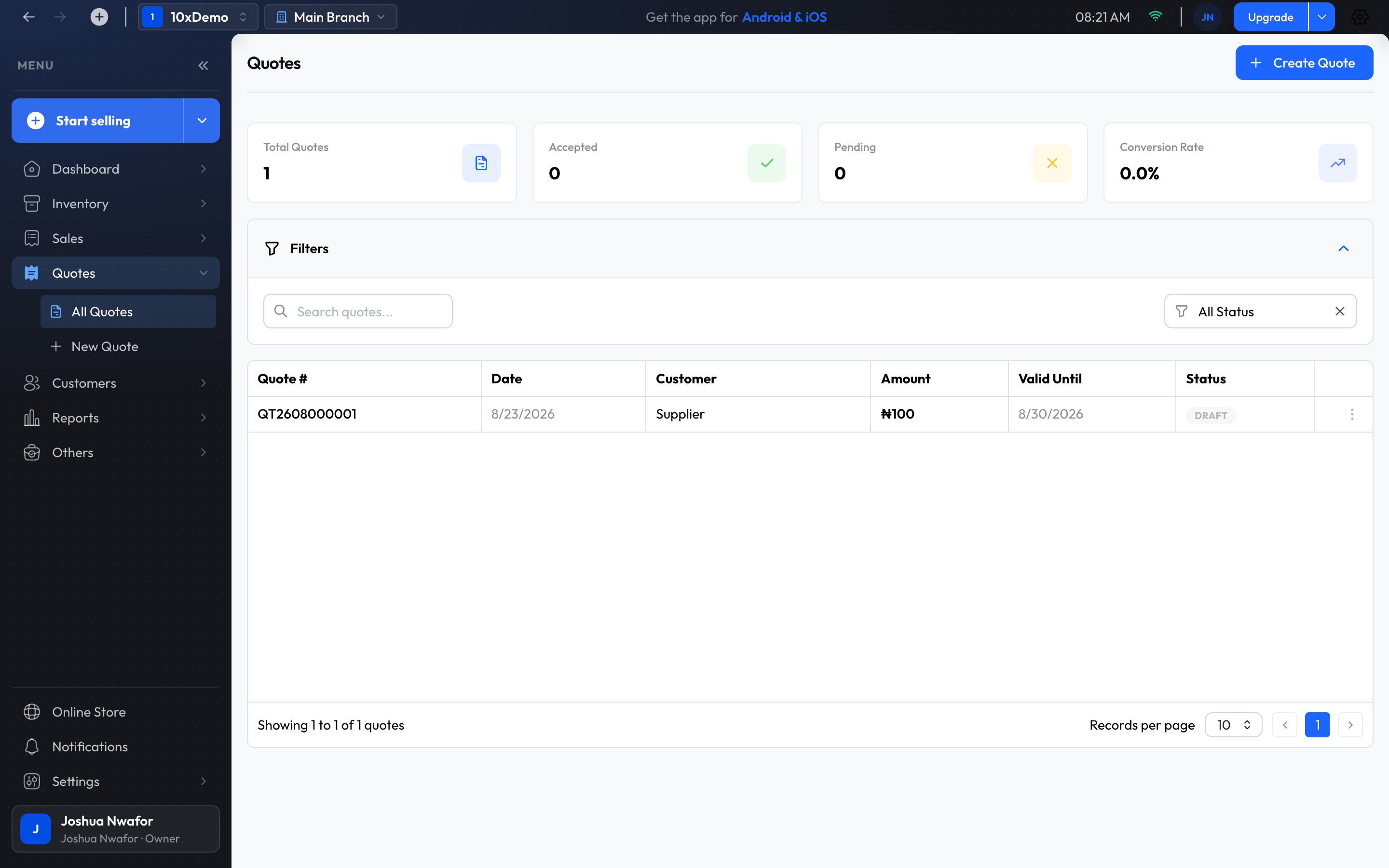
- Open Quotes and choose New Quote.
- Pick the customer.
- Add the products and quantities.
- Set Valid Until. It starts at 7 days from today.
- Add any discount and your terms, then save.
From the checkout
If you have already put items on the checkout, choose Quotation. The items on screen are saved as a pending quote for the customer you selected.
Send it to the customer
Open the quote and choose Download PDF, then send the file to the customer yourself, by WhatsApp or email for example. The app doesn't send quotes for you.
Accept or reject
A new quote is pending. Open it and choose Accept Quote or Reject Quote once the customer has decided.
Turn a quote into a sale
- Open the accepted quote.
- Choose Convert to Invoice. The quote becomes an unpaid invoice.
- Open the invoice and use Add in its Payments panel to record the payment.
A quote doesn't take anything out of stock. Stock changes when the quote becomes an invoice.
Related
Still stuck? Contact support.