
Online Store
Sell online from the same stock you sell in the shop. Customers order and pay on your store page, and the orders arrive in the app.
- Where to find it
- Online Store
- Who can use it
- Owners and admins.
Set up your store
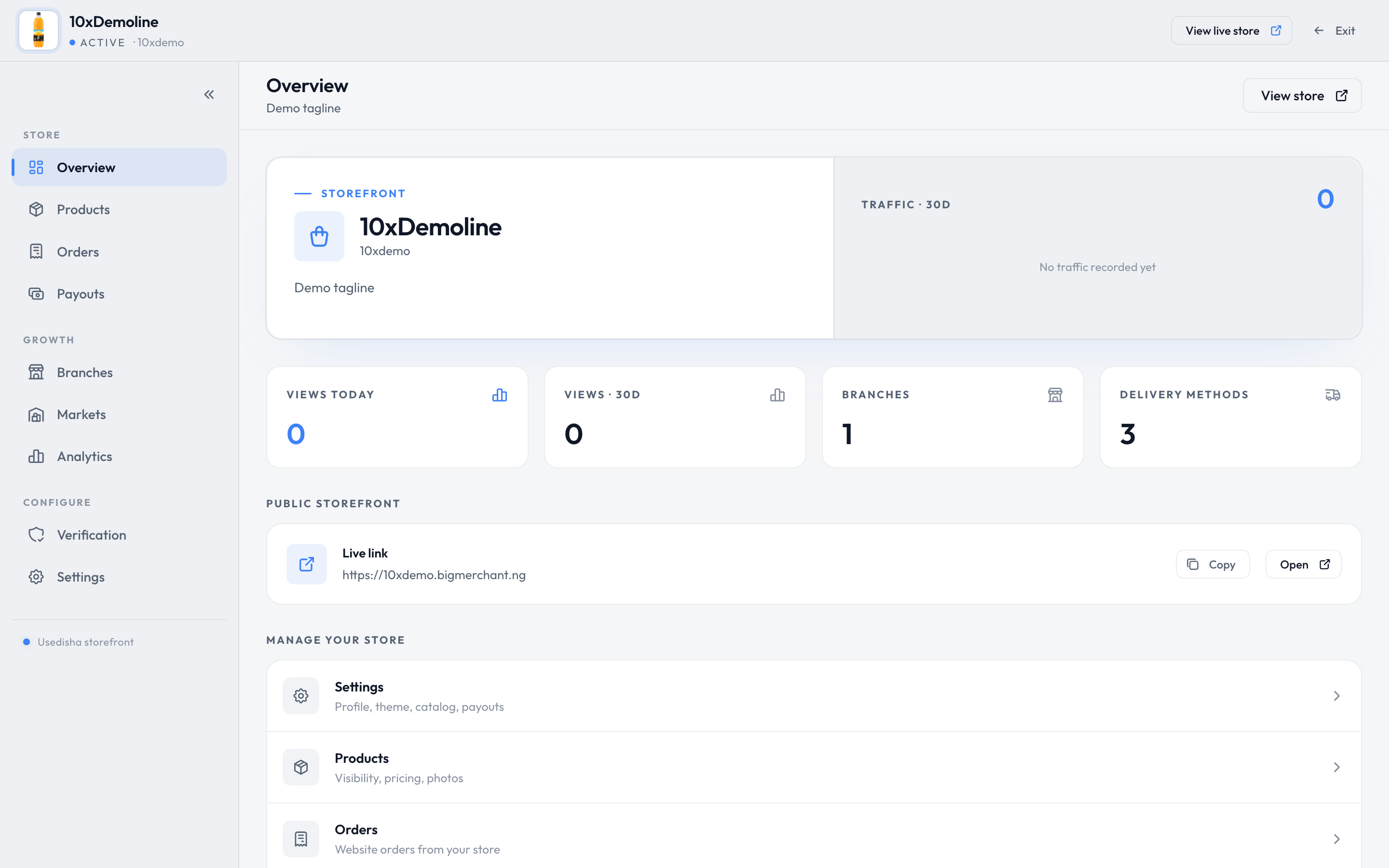
- Open Online Store at the bottom of the menu.
- Choose Set up your online store, then Create your store.
- Enter the store name, the branch it sells from, its web address, a tagline and a description.
- Choose Create store.
The store has its own menu: Overview, Products, Orders, Payouts, Branches, Markets, Analytics, Verification and Settings. Exit takes you back to the shop.
Put products online
A product is only sold online once you switch it on. Either:
- on the product itself, switch on Show in Usedisha; or
- in the store's Products, switch on Visible on online store.
Handle an order
Open the order from the store's Orders and move it along:
- Confirm order
- Start processing
- Mark ready to ship
- Ship order
- Mark delivered
- Complete order
To have new orders accepted without waiting for you, turn on automatic acceptance in Settings → Business Profile.
Get paid
- Add a payout account in the store's Settings.
- Complete Verification.
- Follow your money in the store's Payouts.
The store's settings show the fees taken from each online order: a platform fee, plus the payment processor's charge. Check that screen for the current rates.
Be found by shoppers
ShopCentral is BigMerchant's marketplace, where shoppers browse many stores.
- To appear there, switch on the store listing option in the store's Settings.
- To join a market, open Markets and choose Request listing.
Important
Online orders are kept apart from sales made in the shop. They take items out of stock, but they aren't counted in the sales reports.
Related
Still stuck? Contact support.